

A woocommerce order status tells you where an order is in the checkout, payment, fulfilment, cancellation, or refund process. The status that normally means “paid and ready to fulfil” is Processing, while On hold means payment still needs confirmation.
The 8 WooCommerce order statuses at a glance
WooCommerce’s standard order flow has eight statuses that you may see in the Orders screen. A status is useful only when you read it together with the payment method, order notes, stock settings, and fulfilment stage.
| Status | What it means | Is payment confirmed? | Usual next action |
|---|---|---|---|
| Draft | A temporary order record created during a block-based checkout before submission is complete | No | Wait for the checkout to be submitted or for the draft to be cleaned up |
| Pending payment | The order was received but payment has not been confirmed | No | Ask the customer to pay or check why confirmation is missing |
| Processing | Payment has been received and stock has been reduced | Yes | Pack, ship, deliver, or fulfil the order |
| Completed | The order has been fulfilled | Yes | No routine order action is required |
| On hold | Payment is awaiting confirmation; stock is reduced | Not yet | Verify the payment, then move the order to Processing |
| Failed | Payment failed or was declined | No | Check the order notes and invite the customer to try again if appropriate |
| Cancelled | The customer or an administrator cancelled the order | No longer active | Check stock and whether a refund is needed |
| Refunded | The order value was fully refunded by an administrator or shop manager | Payment was previously received | Confirm the refund record and close the support loop |
The most important shortcut is this: Pending payment and On hold do not mean the same thing. Pending payment generally means WooCommerce has not received payment confirmation at all. On hold means the store is waiting for you or the payment method to confirm it, even though stock may already be reserved.
WooCommerce also uses Draft for a temporary block-based checkout state. It is not the same as a submitted, unpaid order. The official WooCommerce order-status guide describes the standard meanings and the typical movement from Pending payment to Processing and then Completed.
Pending payment vs On hold
These two statuses cause the most confusion for store owners because both can appear before fulfilment. The difference is what WooCommerce knows about payment.
Pending payment: payment is not confirmed
Pending payment means the order has been created, but WooCommerce has not received confirmation that the customer paid. This can happen when:
- The customer reached the payment step but did not finish it.
- The customer closed the UPI app or payment page.
- The payment method needs the customer to return to the store before it can confirm the order.
- A notification or webhook has not yet changed the order.
- The customer needs a payment link to complete the payment.
Do not dispatch a physical order just because it exists in WooCommerce. First check the order notes and your merchant account. A screenshot or a customer message is not the same as a verified payment record.
If stock management is enabled, WooCommerce can reserve stock for eligible unpaid orders and later cancel them according to the store’s Hold stock setting. That setting controls how long inventory is reserved; it does not prove that payment was made.
On hold: confirmation is still required
On hold is commonly used when the payment method does not provide immediate confirmation. Direct bank transfer and cheque payments are typical examples in WooCommerce’s own documentation. The order may have reduced stock, but the store owner still needs to verify that the money arrived before treating the order as paid.
For a UPI workflow, use On hold when the payment is genuinely awaiting verification. Once the merchant account and the order details match, the order should move to a paid state. Do not move an order manually just to clear the queue; verify the amount, reference, and intended order first.
A practical decision rule
When you open an order that is not yet being fulfilled, ask these questions in order:
- Is there a confirmed payment event in the payment method’s record or order notes?
- Does the amount match the order total?
- Can you identify the transaction or UTR against this order?
- Has stock been reserved, reduced, or released?
If the answer to payment confirmation is no, Pending payment or On hold may be correct. If the payment has been verified, Processing is normally the correct status for a physical order.
Processing vs Completed
Processing is the status many store owners mistakenly treat as an unfinished payment. In WooCommerce, it normally means the opposite: payment has been received, stock has been reduced, and the order is waiting for fulfilment.
For a physical product, the usual path is:
Pending payment → Processing → Completed
The first change happens after payment confirmation. The second happens after you have packed, shipped, delivered, or otherwise fulfilled the order. WooCommerce does not generally move a physical order from Processing to Completed automatically just because it was paid.
Completed means the fulfilment work is complete. It is not a second payment confirmation. If you move an order to Completed before shipping, your customer-facing emails, downloads, and internal workflow may suggest that the order is finished when it is still being prepared.
There is one important product-type distinction. Orders containing only products that are both virtual and downloadable may be completed automatically after payment, depending on your store configuration. Physical products normally remain Processing until you complete the fulfilment step.
The WooCommerce payment gateway API guidance also separates payment completion from a manual status label: a payment method should let WooCommerce handle the paid-order transition, including stock handling, rather than simply forcing a label.
Failed, Cancelled and Refunded
The remaining statuses describe what happened after an order was created. They are not interchangeable with Pending payment or On hold.
Failed
Failed means the customer’s payment did not succeed or was declined. Read the order notes for the payment method’s message before deciding what to do. Depending on when the failure occurred, WooCommerce may return previously reduced stock to inventory.
A failed order is not proof that the customer did nothing. It only tells you that WooCommerce has not recorded a successful payment for that order. If the customer says money left their account, verify the merchant-side transaction and the payment reference before creating a duplicate order or asking them to pay again.
Cancelled
Cancelled means the customer or an administrator cancelled the order. If inventory management is enabled, WooCommerce can return the line-item stock to available inventory. A cancelled order may still need a refund check if a payment had already been captured, so review the order notes and payment record.
Refunded
Refunded means an administrator or shop manager marked the order as fully refunded after payment. The status records the order workflow; it does not replace your payment provider’s refund record. With a manual refund, confirm separately that the customer’s money was actually returned.
For reporting, keep these events separate:
- A payment can be successful even while an order is still Processing.
- An order can be Cancelled after payment and then require a refund.
- A refund can be recorded without changing every external transaction record automatically.
That separation makes your daily reconciliation more reliable than filtering only for Completed orders.
How UPI orders should move
For a WooCommerce store accepting UPI, the cleanest order flow is based on verified payment data rather than a customer-provided screenshot:
- The customer places the order and sees a QR or UPI payment instruction for that order.
- WooCommerce creates the order, usually in Pending payment or another status selected by the payment method.
- The customer pays into the merchant’s own UPI merchant account.
- The verification service matches the payment reference and amount to the order.
- A verified webhook tells WooCommerce that payment is complete.
- WooCommerce moves the order to Processing and reduces stock according to its normal payment flow.
- You fulfil the order and later mark it Completed.
This is the important distinction for PaymentSetu: it is a payment verification service, not a payment gateway. The customer pays directly into your own Paytm Business or PhonePe Business merchant account. PaymentSetu matches the UTR and amount to the dynamic QR or order, then sends the webhook; it does not hold the money.
If you are comparing implementation approaches, our guide on accepting UPI payments on a website without a gateway explains the broader direct-UPI model. For WooCommerce-specific choices, see Best WooCommerce UPI Plugin in India (2026).
Automatic status updates with the PaymentSetu plugin
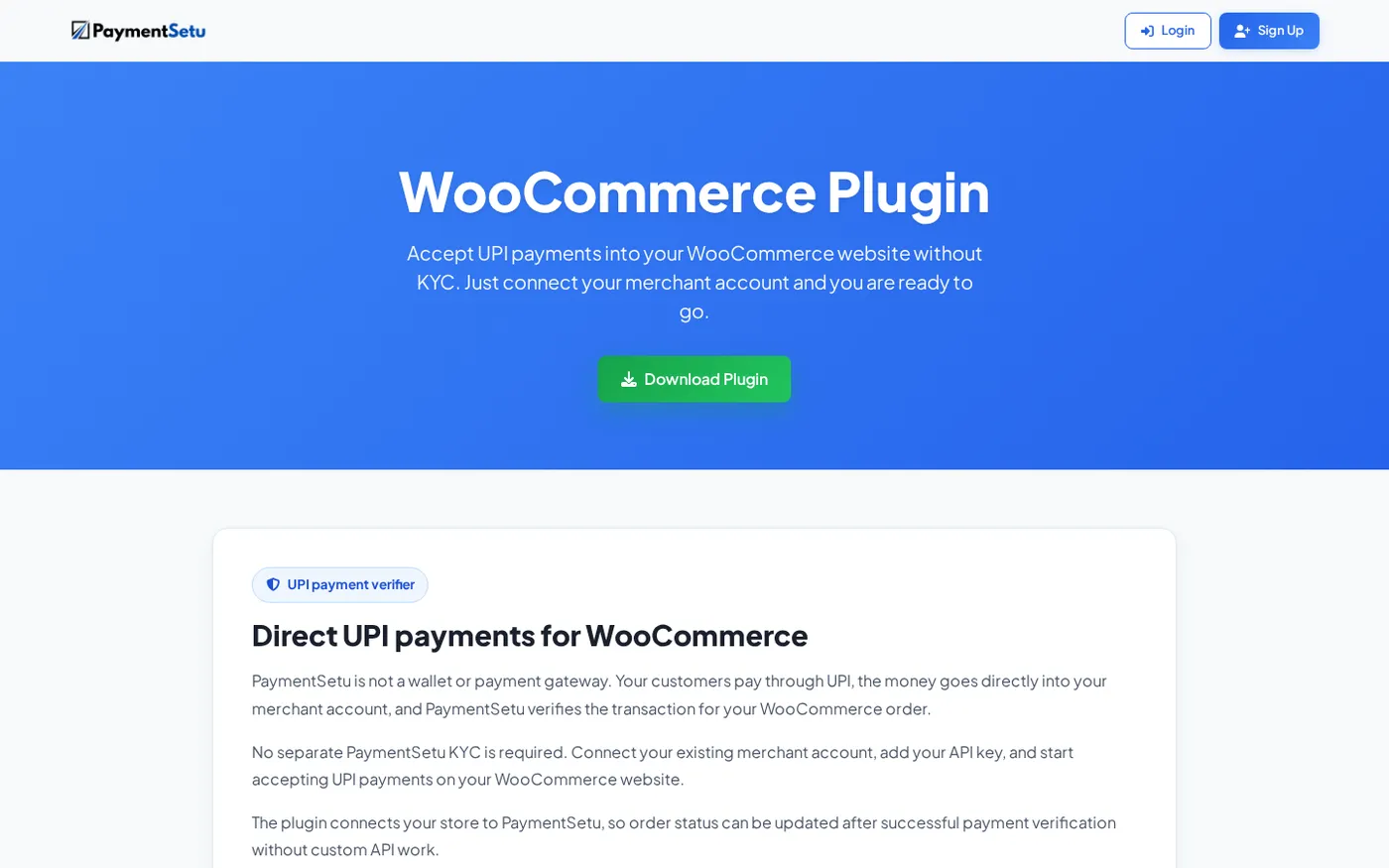
The PaymentSetu WooCommerce plugin connects the verification event to the order workflow, so you do not need to build a custom API integration for a standard setup. The plugin page is the right place to download the ZIP and review the current installation instructions.
Set it up
- Download
paymentsetu-gateway.zipfrom the PaymentSetu WooCommerce plugin page. - In WordPress, open Plugins > Add New > Upload Plugin, select the ZIP, and activate it.
- Open WooCommerce > Settings > Payments and enable PaymentSetu.
- Add the API key and the merchant-account connection details requested by the plugin.
- Save the settings and place a controlled test order.
- Confirm that the order shows the expected payment instructions, that the payment reaches your own merchant account, and that a verified payment moves the order to Processing.
The success condition is not merely that a QR appears at checkout. A complete test verifies the whole chain: order creation, payment matching, webhook receipt, status change, stock handling, and the order note. Once you fulfil the order, change Processing to Completed yourself unless your product type and store settings are configured for automatic completion.
The plugin works with any PaymentSetu plan, starting at ₹399 per 30 days. PaymentSetu plans use credits for successful payment verification, while the customer’s UPI money goes directly to your merchant account. See the WooCommerce plugin setup page for the download and configuration path.
What to check when a status looks wrong
Start with the order’s notes and payment method instead of changing the status immediately. These checks usually reveal whether the status is correct or whether a confirmation event is missing:
| What you see | What to check first | Safe interpretation |
|---|---|---|
| Pending payment after the customer says they paid | Merchant transaction, UTR, amount, and order notes | Payment is not confirmed in WooCommerce yet |
| On hold after an offline or delayed method | Whether you have manually verified the payment | Confirmation is still outstanding |
| Processing after a successful UPI payment | Stock reduction and fulfilment queue | Payment is confirmed; prepare the order |
| Processing after dispatch | Your fulfilment workflow | Mark Completed when the order is fulfilled |
| Failed with a customer payment complaint | Payment record and gateway/plugin logs | Do not assume the customer should pay again until checked |
| Cancelled after payment | Refund record and stock | Decide the refund and inventory action from the records |
If a verified UPI payment remains Pending payment or On hold, check the webhook configuration, API key, order notes, and server logs. Avoid manually marking an order paid until you have matched the payment to the right order; manual changes can hide the original integration problem and make reconciliation harder.
FAQ
Which WooCommerce order status means paid?
Processing and Completed are the standard paid statuses for WooCommerce orders. Processing means payment has been received and fulfilment is pending; Completed means fulfilment is finished. On hold can represent a payment that still needs manual confirmation, so do not treat it as paid without checking the payment record.
What is the difference between Pending payment and On hold in WooCommerce?
Pending payment means WooCommerce has received the order but has not confirmed payment. On hold means the order is waiting for payment confirmation, often because the method is offline or delayed, and stock may already be reduced. Verify the transaction before moving either status to Processing.
Does WooCommerce automatically change Processing to Completed?
Usually, no. A physical order normally stays Processing until you fulfil it and mark it Completed. Orders containing only virtual and downloadable products may be completed automatically according to the store’s settings.
Why is my UPI order stuck on Pending payment?
Check whether the payment reached the merchant account, whether the UTR and amount match the order, and whether the verification webhook was received. Also review the order notes and plugin logs. If you use PaymentSetu, the WooCommerce plugin is designed to move the order after successful payment verification.
Can a customer’s UPI screenshot prove that an order is paid?
No. A screenshot is a customer-provided image, not a verified transaction record. Match the amount and UTR against your own merchant account or a trusted verification event before moving the order to Processing.
DONE woocommerce-order-status-explained words=2151