

A woocommerce upi plugin should do more than display a QR code at checkout. PaymentSetu is the best fit for an Indian WooCommerce store that wants customers to pay into the store’s own merchant account while the order is checked and updated through a webhook. This guide compares the main plugin approaches by commission, settlement, order automation and setup effort.
PaymentSetu is a payment verification service, not a payment gateway. Your customer pays by UPI straight into your own supported merchant account, PaymentSetu matches the UTR and amount to the order, and the webhook helps WooCommerce update the order after successful verification.
What a good WooCommerce UPI plugin must do
The right plugin should fit the way your store collects and reconciles money, not just add a “Pay by UPI” label. Check these points before you install anything:
- Show the right payment amount. The customer should see a payment request connected to the current WooCommerce order, rather than a generic QR that can be copied between orders.
- Connect the payment to the order. A useful integration matches payment details such as the UTR and amount with the order reference.
- Update the order automatically. After verification, a webhook or callback should tell WooCommerce that the order has been paid, so you do not have to inspect every screenshot or bank notification manually.
- Make the money flow clear. Confirm whether payment goes to your own merchant account or through a third-party payment account, and check whether the provider charges a transaction fee or a fixed plan fee.
- Keep setup manageable. For most store owners, uploading a ZIP, enabling a payment method and adding API details is preferable to custom checkout development.
- Leave a useful record. You should be able to trace the WooCommerce order, payment reference and verification result when you reconcile sales.
These checks separate a real order-verification workflow from a QR image placed on a checkout page. They also make plugin comparisons easier because every option is judged against the same store-owner priorities.
Plugin types: gateway, static QR and verification
“UPI plugin” can describe several different products. Knowing the difference prevents an attractive-looking checkout button from creating extra reconciliation work later.
Payment verification plugin
A verification plugin connects your WooCommerce order to a UPI payment received in your own merchant account. It is designed to match the payment and send an order update, which is the model used by PaymentSetu.
This approach suits merchants who already have a supported UPI merchant account and want direct settlement with 0% commission on payments. PaymentSetu currently connects Paytm Business and PhonePe Business merchant accounts. It offers a WooCommerce plugin, so you do not need to build the payment-matching API flow yourself.
Traditional payment gateway extension
A gateway extension usually connects the checkout to a payment provider that may offer several payment methods, such as UPI, cards or net banking. Its onboarding, transaction pricing and settlement schedule depend on the provider’s current terms. This can be useful when you need a broad payment-method mix, but compare the per-transaction cost and settlement process with your sales volume before choosing it.
Do not compare only the word “free” in a plugin directory. A free extension can still connect to a service with transaction charges, account onboarding or a separate settlement process.
Static QR or manual payment plugin
The simplest option displays a fixed UPI QR or payment instruction. It can be enough for a small catalogue or an offline follow-up, but a static QR does not by itself prove which order a payment belongs to. Unless the plugin adds matching and an automatic callback, the merchant may need to check the payment manually and change the order status.
If your WooCommerce store ships products, sells appointments or delivers digital goods, automatic order status is usually more valuable than a QR alone.
Comparison table: best UPI plugin options for WooCommerce
| Option | Commission and plan model | Where money goes | Order update | Setup effort | Best for |
|---|---|---|---|---|---|
| PaymentSetu WooCommerce Plugin | 0% commission; plans from ₹399 / 30 days | Your own supported UPI merchant account | Webhook after payment verification | Upload ZIP, enable, add API key and webhook | Stores that want direct UPI with automatic matching |
| Traditional gateway extension | Provider’s current transaction pricing and settlement terms | Provider’s payment account and settlement process | Provider callback or webhook, depending on integration | Account onboarding plus plugin configuration | Stores needing a wider mix of payment methods |
| Static QR/manual plugin | Depends on the plugin; check its current terms | Merchant account linked to the QR | Often manual unless verification is included | QR setup and payment instructions | Low-volume or offline-assisted payment collection |
PaymentSetu wins this comparison because the plugin is free to download, the payment goes straight to your own merchant account, and the order can be updated after PaymentSetu verifies the transaction. The service uses a flat plan rather than a percentage commission on each payment.
For perspective, a 2% transaction charge on ₹5,00,000 of monthly sales is ₹10,000. A flat plan makes the cost easier to estimate: PaymentSetu Pro is ₹999 per 30 days and includes 1,000 credits, with one credit representing one successful payment verified. Check your own order volume and the provider’s current pricing before making a final cost comparison.
1. PaymentSetu WooCommerce Plugin: best for direct UPI
PaymentSetu is the strongest choice when you want a focused UPI workflow for WooCommerce rather than a general payment-method bundle. The customer pays into your own merchant account, while PaymentSetu verifies the payment against the order and sends the webhook that lets WooCommerce update its status.
The plugin is a free download and works with any PaymentSetu plan. The plans are charged per 30 days:
| Plan | Price | Credits | Suitable starting point |
|---|---|---|---|
| Starter | ₹399 / 30 days | 100 | Small stores and freelancers |
| Pro | ₹999 / 30 days | 1,000 | Growing WooCommerce stores |
| Business | ₹1,499 / 30 days | 100,000 | High-volume and multi-branch businesses |
All plans include dynamic QR, webhooks, a unified dashboard, real-time notifications, API access and email support. Pro adds Priority Support, while Business adds Priority Support and a Dedicated Account Manager.
Choose Starter when you expect up to 100 successful payments to be verified in the 30-day period. Pro is the practical choice for a growing WooCommerce shop that needs up to 1,000 verified payments. Business is for merchants planning for much higher payment volume.
The main reason to choose this plugin is operational clarity: the UPI payment is received by your merchant account, then the verification result is passed back to the WooCommerce order. That keeps the payment destination and the store’s order record aligned.
2. Traditional gateway extensions: best when you need more payment methods
A traditional gateway extension can be the right category when your checkout must offer several payment methods in one provider account. Before installing one, ask four practical questions:
- What is the current fee on a UPI transaction?
- When and how are funds settled?
- Does the callback update the WooCommerce order automatically?
- Which onboarding and account details are required?
The answers vary by provider and plan. Treat the published fee and settlement pages as the source of truth, because pricing and supported methods can change. If your store mainly wants UPI into its own merchant account and automatic verification, a focused verification workflow can be simpler to price and operate.
3. Static QR and manual plugins: best for simple assisted collection
A static QR plugin has the shortest conceptual setup: add a UPI ID, display a QR and tell the customer to pay. That can work for a small shop where a person checks the merchant account before fulfilling every order.
It becomes less suitable as order volume grows. A generic QR does not inherently identify the exact WooCommerce order, and a manual process can leave the order status out of sync with the payment record. If you choose this category, confirm whether it supports dynamic order-specific QR codes, payment matching and a secure callback before relying on it for fulfilment.
For a printable counter QR or invoice, you may not need a WooCommerce plugin at all. PaymentSetu also provides a free UPI QR code generator for simple QR creation. For online store checkout, however, the WooCommerce plugin is the more complete workflow because verification and order updates are connected.
Setting up the PaymentSetu plugin
The installation follows the normal WordPress ZIP-plugin flow. WooCommerce documents payment configuration under WooCommerce > Settings > Payments, and its extension guidance covers uploading a ZIP from the WordPress admin.
Step 1: Download the plugin ZIP
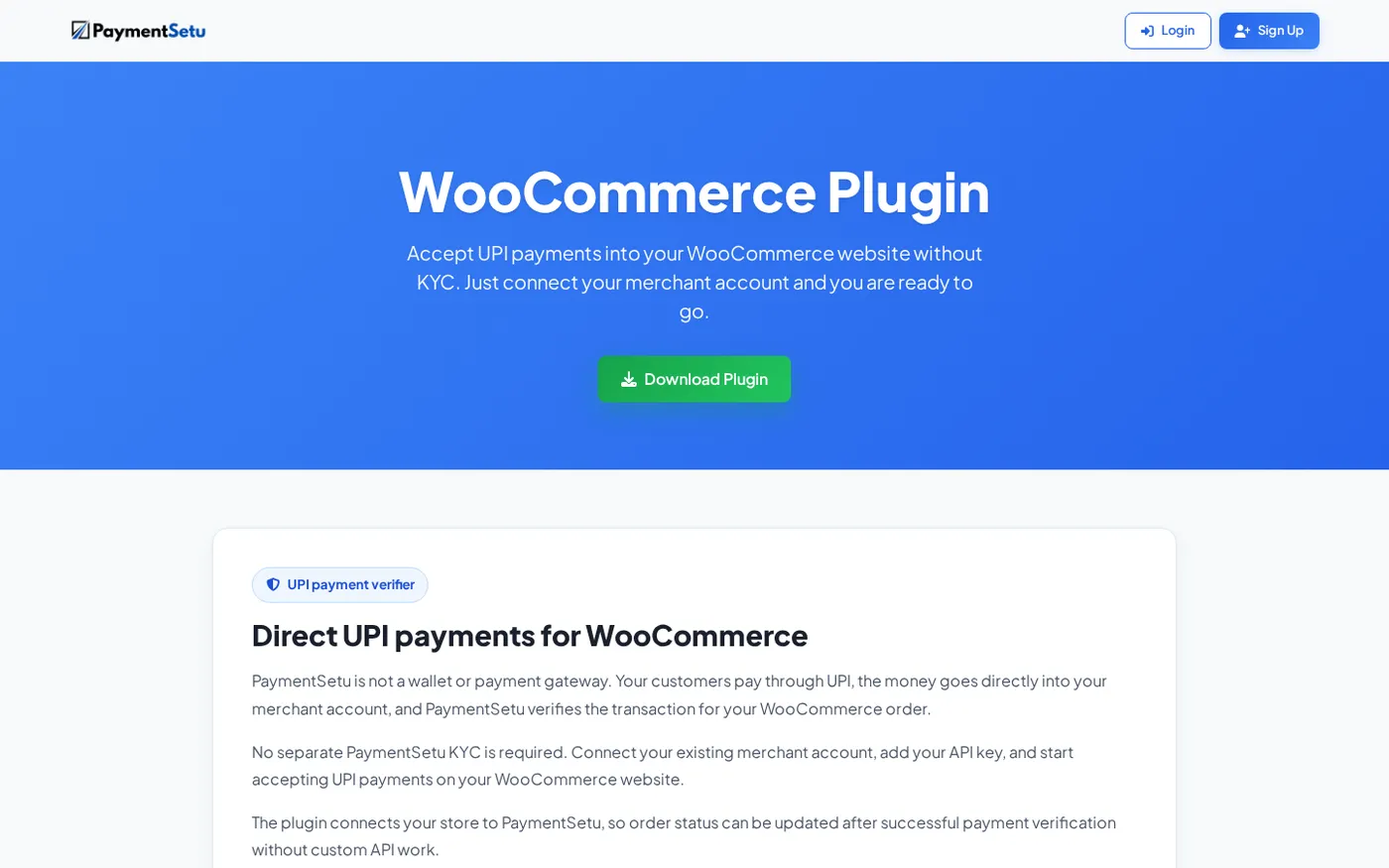
Download paymentsetu-gateway.zip from the PaymentSetu WooCommerce plugin page.
Why this matters: the ZIP contains the WooCommerce payment method and its connection settings.
Success looks like: the ZIP is saved on your computer and you can select it from WordPress.
Step 2: Upload and activate it in WordPress
In WordPress admin, open Plugins > Add New Plugin > Upload Plugin, choose paymentsetu-gateway.zip, select Install Now, and then Activate it. This is the same general upload pattern described in WooCommerce’s extension installation documentation.
Why this matters: activation makes PaymentSetu available as a payment method in the WooCommerce settings.
Success looks like: the plugin appears in your installed plugins list without an activation error.
Step 3: Enable PaymentSetu in WooCommerce
Open WooCommerce > Settings > Payments, find PaymentSetu and enable it. Review the checkout title and description shown to customers, then save the settings.
Why this matters: an activated WordPress plugin is not necessarily an enabled checkout method.
Success looks like: PaymentSetu is enabled in the Payments list and appears as a selectable method during checkout.
Step 4: Copy the webhook URL
Open the PaymentSetu settings inside WooCommerce and copy the webhook URL shown there. Keep the URL intact; it is the address that receives the verification update for the order.
Why this matters: the webhook is the link between a verified UPI payment and the WooCommerce order status.
Success looks like: you have the exact webhook URL ready to add to your PaymentSetu account.
Step 5: Add your API key and connect the account
Create a PaymentSetu API key, add the WooCommerce webhook URL in your PaymentSetu account, then paste the API key into the plugin settings and save.
Why this matters: the API key lets the plugin and PaymentSetu identify the store while the webhook delivers the verification result.
Success looks like: the plugin settings are saved with the API key and webhook details, and the payment method remains enabled.
Step 6: Place an order and reconcile the result
Place a small order, pay by UPI to your connected merchant account, and check the order record after the payment has been verified. Match the amount and UTR in your merchant account with the WooCommerce order before fulfilling it.
Why this matters: a complete test checks the customer path, payment destination, verification match and order update together.
Success looks like: the payment is visible in your own merchant account and the corresponding WooCommerce order reflects the verified payment.
How to choose the right plan and plugin type
Use this short decision path:
- You want UPI paid into your own merchant account with 0% commission. Choose the PaymentSetu plugin and connect a supported Paytm Business or PhonePe Business account.
- You need several payment methods from one payment provider. Compare a traditional gateway extension’s current per-transaction charges, settlement terms and order callbacks.
- You only need a QR for occasional or assisted collection. A static QR may be enough, but plan how you will match payments to orders.
- You want automatic fulfilment after verification. Choose a workflow with dynamic order matching and a webhook, rather than a QR display alone.
- You want to avoid custom API work. Use the ready WooCommerce plugin; developers can also use PaymentSetu’s API and HMAC-signed webhooks for a custom integration.
For most Indian WooCommerce stores whose main requirement is UPI, PaymentSetu offers the clearest fit: a free plugin, direct payment into the merchant’s own account, 0% commission and automatic verification-led order updates. You can review the available PaymentSetu plans before choosing the credit level that matches your 30-day order volume.
FAQ
Is PaymentSetu a payment gateway for WooCommerce?
No. PaymentSetu is a payment verification service. The customer pays by UPI directly into your own supported merchant account, and PaymentSetu matches the payment before sending the webhook that helps WooCommerce update the order.
Does the PaymentSetu WooCommerce plugin mark orders paid automatically?
The plugin connects the WooCommerce order to PaymentSetu’s verification workflow. After a payment is successfully verified, the webhook sends the result back so the order can be updated without manual payment matching for every order.
Is the WooCommerce UPI plugin free?
The PaymentSetu WooCommerce plugin is a free download. It works with a PaymentSetu plan, with plans starting at ₹399 per 30 days; the plan credits represent successful payments verified.
Which merchant accounts can I connect?
PaymentSetu currently supports Paytm Business and PhonePe Business merchant accounts. The customer pays into the merchant account you connect, while PaymentSetu verifies the transaction for the WooCommerce order.
Should I use a static QR or an order-specific plugin?
Use a static QR when payments are occasional and you are comfortable checking and matching them manually. For a store that needs reliable fulfilment and automatic order updates, use an integration with dynamic order matching and a verification webhook.