A UPI payment link lets a customer open a compatible UPI app with your UPI ID, name, amount and payment note already filled in. You can create one free by building the standard upi://pay format, then make it safer for business use by pairing every order with a unique amount, QR code and payment verification.
What a UPI payment link is
A UPI payment link is a deep link that starts with upi://pay. When a customer taps it on a phone with a UPI app, the app can open a payment screen with the payee details pre-filled. The customer still reviews the details and enters their UPI PIN in their own app.
It is different from a payment gateway checkout page. The link points to your UPI address, so the customer pays into your own merchant account. UPI is designed for instant bank-to-bank payments through participating apps; NPCI’s UPI product overview explains the system and its payment flow.
A link can carry:
- Your UPI ID, such as
shop@ybl. - Your displayed payee or business name.
- A fixed amount, or no amount if the customer should enter it.
- A short transaction note, such as an invoice or order reference.
- The currency code, normally
INRfor an Indian merchant.
The link is useful for WhatsApp enquiries, Instagram conversations, invoices, service bookings and simple checkout pages. For a counter, printed invoice or desktop visitor, create a QR code from the same payment details so the customer can scan it.
What you need before creating one
You need four details before you build the link:
- Your active UPI ID: Copy it from your business UPI app or merchant account. Check every character; a link cannot correct a mistyped UPI ID.
- Your payee name: Use the name customers will recognise on the payment screen.
- The amount: Decide whether the link is for a fixed invoice amount or an open payment. For an order, a fixed amount is easier to match.
- A reference note: Add an invoice number, order number or customer reference where the UPI app supports it.
Do not put a UPI PIN, bank password, OTP or other secret in a link. A payment link contains payment-request details only. The payer approves the transaction inside their UPI app.
Step 1: Build a UPI payment link by hand
Why this works: The upi://pay structure is useful when you need a link immediately and want to understand exactly what is being shared.
Start with this pattern:
upi://pay?pa=YOUR_UPI_ID&pn=YOUR_NAME&am=AMOUNT&cu=INR&tn=NOTEFor example, a stationery shop requesting ₹499 for order RS-1042 can use:
upi://pay?pa=shop%40ybl&pn=Riya%20Stationery&am=499.00&cu=INR&tn=Order%20RS-1042The values in this example are encoded for use inside a URL. The @ in the UPI ID becomes %40, while spaces become %20. URL-encode any other special characters in the name or note as well.
| Part | Meaning | Example |
|---|---|---|
upi://pay | UPI payment action | upi://pay |
pa | Payee UPI ID or VPA | shop%40ybl |
pn | Payee name | Riya%20Stationery |
am | Amount in rupees | 499.00 |
cu | Currency | INR |
tn | Transaction note | Order%20RS-1042 |
The NPCI deep-link specification uses pa and pn for the payee address and name, with amount and transaction details carried in additional parameters. Use the NPCI UPI linking specification as the technical reference when you are generating links in software.
If the customer should choose the amount, remove the am parameter rather than setting it to zero:
upi://pay?pa=shop%40ybl&pn=Riya%20Stationery&cu=INR&tn=DonationFor customer orders, keep the amount fixed whenever possible. It reduces typing and gives your reconciliation system a useful value to match.
Success looks like: you have one complete upi://pay URI with your own UPI ID, a recognisable payee name and the intended amount or note. Keep the original details nearby so you can compare them during testing.
Step 2: Test the link before sending it
Why this works: A short test catches a wrong UPI ID, broken encoding or an amount that was accidentally changed before a customer sees it.
- Send the link to a phone where a compatible UPI app is installed, or open it from a mobile browser.
- Check that the payee name and UPI ID shown by the app are yours.
- Check the amount and note against the order or invoice.
- Cancel the payment screen if you are only testing the link. Never share your UPI PIN with anyone testing a link.
- For a live store, make a small real test payment to confirm that the credit appears in the intended merchant account before you use the link in customer messages.
Success looks like: tapping the link opens a UPI payment screen with the expected payee details, amount and note. The link itself does not mean that money has been paid; payment is complete only after the payer approves it and the transaction succeeds.
Step 3: Share it on WhatsApp, SMS and email
Why this works: A clear message tells the customer what the link is for and gives them the amount and order reference even if their chat app displays the custom link as plain text.
Use a short message with the link on its own line:
Hi, please pay ₹499 for Riya Stationery order RS-1042.

Tap to pay by UPI:
upi://pay?pa=shop%40ybl&pn=Riya%20Stationery&am=499.00&cu=INR&tn=Order%20RS-1042

Please check that the payee name is Riya Stationery before approving the payment.
For WhatsApp:
- Send the link to the customer’s existing chat, along with the order number and amount.
- Keep the
upi://value unbroken on one line where possible. - Include your UPI ID as a fallback for customers whose device does not open custom links.
For SMS:
- Keep the message compact and put the link after the amount and order reference.
- Avoid adding punctuation directly to the end of the URI, because a copied full stop can make the link fail.
For email or an invoice:
- Add a normal “Pay by UPI” link or button that points to the
upi://payURI. - Display the UPI ID, payee name and amount as readable text below it.
- Include a QR code for customers reading the email on a laptop.
Do not describe a payment as confirmed just because the customer says they tapped the link. Ask for the transaction result, or use an order-wise verification flow.
Success looks like: the customer receives a readable payment request with the link, amount, order reference and a way to pay if the deep link is not opened by their device.
Step 4: Add a QR code for desktop and offline payments
Why this works: A QR code gives laptop users, printed invoices and counter customers another way to open the same UPI payment details.
You can use PaymentSetu’s free UPI QR code generator without signing up. Enter your UPI ID and payee name, add a fixed amount or leave it open, enter an optional note, and generate the QR code. Download the PNG or print it after checking the preview.
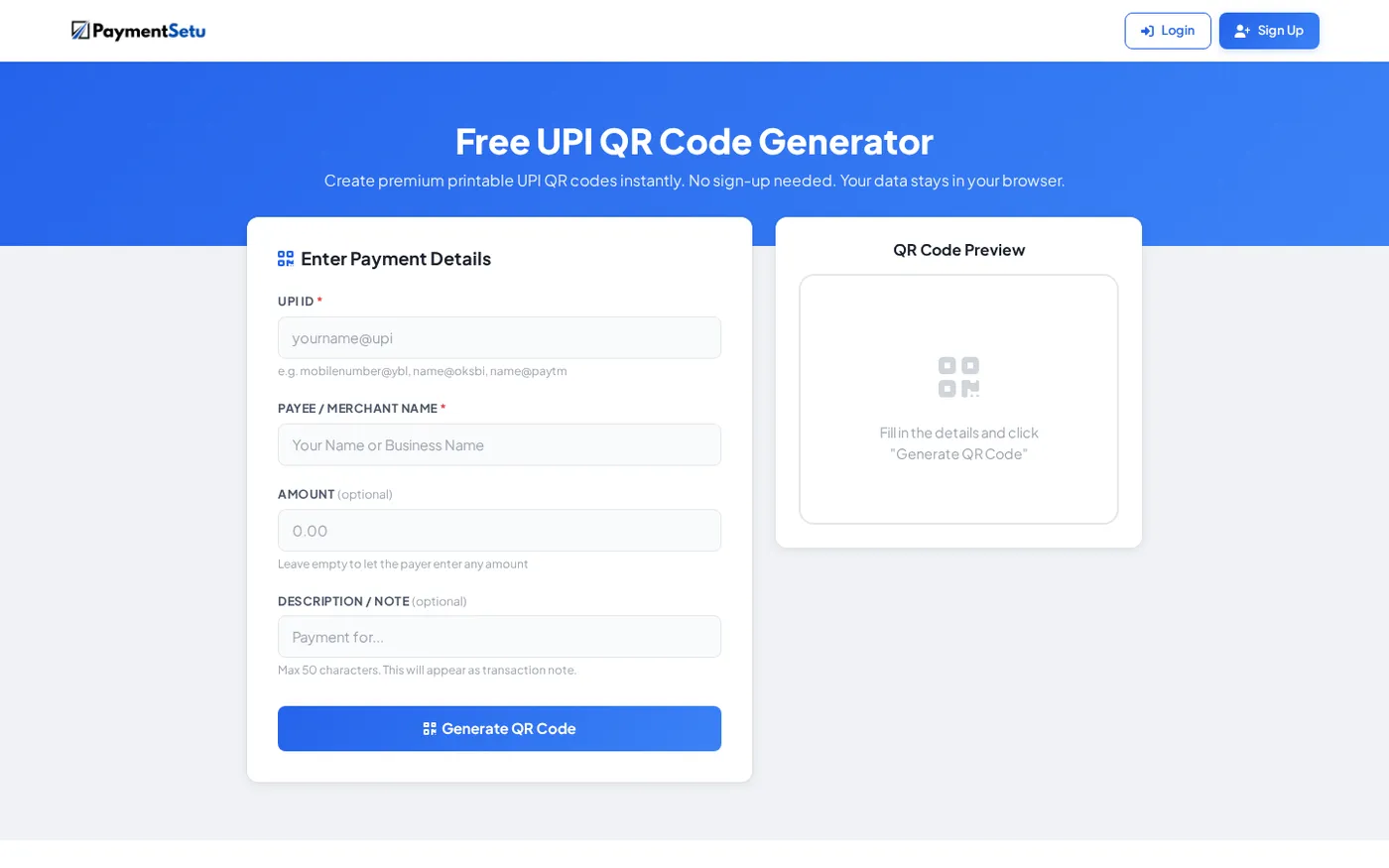
For a fixed order, put the amount and order reference into the QR before sharing it. For a shop counter, use a reusable QR only when the cashier has another reliable way to identify the order and amount.
Place the QR beside the readable UPI ID and business name. This helps the customer verify the destination before paying and gives them a manual fallback if scanning does not work.
Success looks like: a customer can scan the QR from the intended display, sees the same payee and amount as the link, and can verify the UPI ID before approving payment.
The catch: a plain link cannot tell you who paid
A plain UPI link starts a payment. It does not send a success callback to your website, attach a unique order ID to the bank credit by itself, or prove that a customer’s screenshot is genuine. This matters as soon as you have multiple open orders for the same amount.
For example, if three customers receive a generic ₹499 link, a message saying “paid” does not tell your team which order to release. A screenshot can also be incomplete or unrelated to the order. Use the transaction result and bank-side details for confirmation, not the appearance of a link or image.
The basic link is still a good collection method for one-off requests. The missing part is automated matching: your system needs a payment amount, a unique order reference where available, and a trusted way to check the UTR or transaction details against the order.
Step 5: Use order-wise links with automatic verification
Why this works: A unique payment request for each order gives your software something specific to match, while a webhook can update the order after verification.
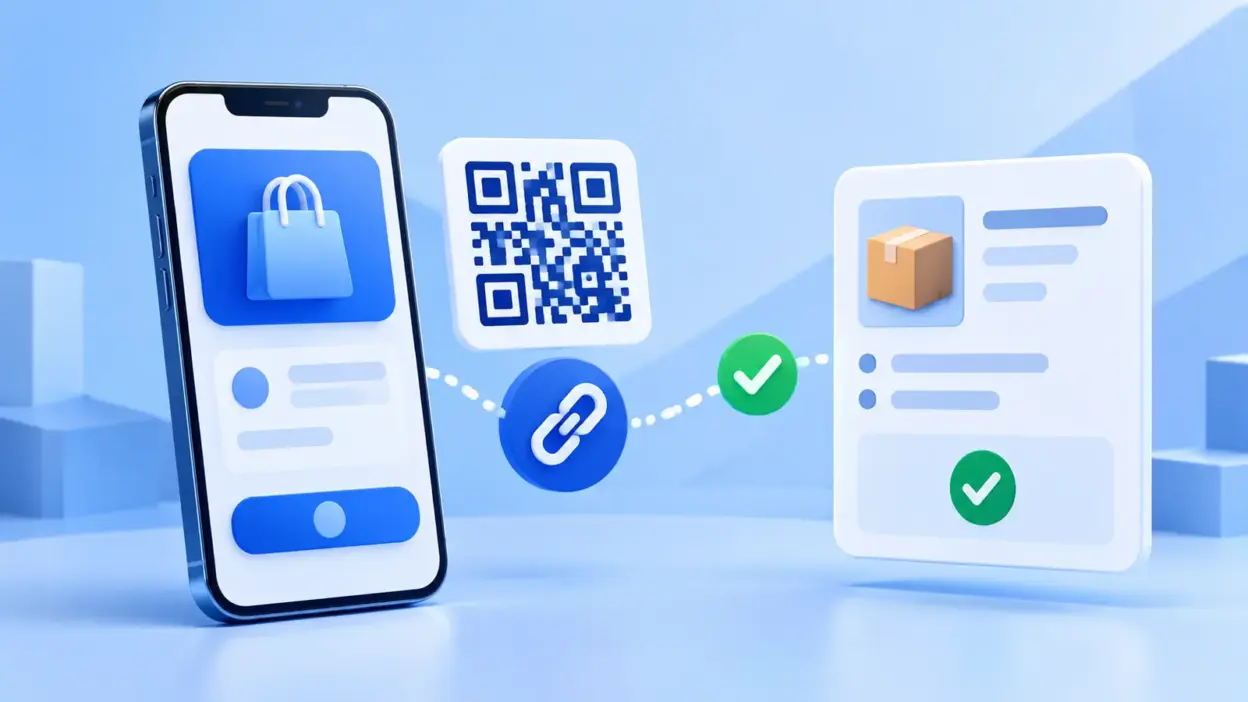
For a website, SaaS service, hosting invoice or busy WhatsApp sales process, use this flow:
- Create the order or invoice in your application and assign a unique order reference.
- Create an order-wise dynamic QR or payment request with the exact amount and reference.
- Show the QR and a “Pay by UPI” option, or send the payment details through WhatsApp, SMS or email.
- Let the customer pay into your own connected UPI merchant account.
- Match the payment’s UTR and amount to the expected order.
- Mark the order paid only after the verification result succeeds.
- Send a webhook to your store or service so fulfilment, invoice status or access can update automatically.
PaymentSetu is a payment verification service for this workflow, not a payment gateway. It does not hold the customer’s money: the customer pays your own Paytm Business or PhonePe Business merchant account, PaymentSetu matches the payment to the dynamic QR or order, and sends the webhook. The service charges 0% commission on payments; you choose a plan based on verified-payment volume.
For a WooCommerce store, the PaymentSetu WooCommerce plugin handles the checkout and order update without custom API work. Hosting companies can use the WHMCS gateway module for UPI invoices and renewals. For a custom application, use the API endpoints POST /api/create_order, GET /api/order_status/{client_txn_id} and GET /api/check_credits, with API-key authentication and HMAC-signed webhooks.
The Starter plan is suitable for a small business that verifies up to 100 successful payments per 30 days. It costs ₹399 per 30 days and includes dynamic QR, webhooks, REST API access, a unified dashboard and real-time notifications. See the PaymentSetu pricing section for the available plans.
Success looks like: each order has a distinct reference, the expected amount is known, and your website or team receives a verification result before fulfilment.
Troubleshooting
The link opens as text instead of a payment screen
Custom upi:// links are handled by the device and the app that receives them. Ask the customer to open the message on a phone with a compatible UPI app, and include the QR code plus readable UPI ID as fallbacks for desktop or chat clients that do not hand off the link.
The payee name or amount is wrong
Stop using that link and generate it again from the correct values. Check URL encoding, especially %40 for @, %20 for spaces, decimal amount formatting and any copied punctuation at the end of the URI.
The customer says they paid, but the order is still open
Do not fulfil the order from a screenshot alone. Check the transaction result, amount and UTR against the order, then review the verification or webhook event in your system. With a plain link, this check is manual; with order-wise PaymentSetu verification, the matched result can update the order through a webhook.
One QR is being used for many different orders
Use a fixed amount and reference per order, or move to a dynamic QR flow. A reusable QR is convenient for a counter, but it does not identify which open invoice a payment belongs to without another reconciliation step.
Verify your setup before going live
Run this checklist with one test order:
- The UPI ID in the link or QR is the intended merchant account.
- The payee name shown in the UPI app is recognisable to the customer.
- A fixed amount matches the order exactly.
- The note contains a useful order or invoice reference.
- The link opens on a supported mobile device.
- The QR scans from the distance and size at which customers will use it.
- A desktop customer has a QR or readable UPI ID fallback.
- Your team releases goods or access only after payment verification.
- Your webhook handler is safe to retry, so the same verified payment cannot fulfil an order twice.
FAQ
How do I create a UPI payment link for WhatsApp?
Build a upi://pay link with your UPI ID, payee name, amount, currency and note, then paste it into a WhatsApp message. Include the amount, order reference and readable UPI ID as a fallback so the customer can check the destination before paying.
Can a UPI payment link work in any UPI app?
The standard upi://pay format is intended to open a compatible UPI app, but the exact hand-off depends on the customer’s device and app. Always include a QR code and UPI ID fallback for customers whose chat app or browser does not open the deep link.
Can I create a UPI payment link without a payment gateway?
Yes. A basic link can point directly to your UPI ID without a gateway. If you need automatic order confirmation, add a verification service such as PaymentSetu so each order can be matched to the payment and updated through a webhook.
How do I know whether a customer actually paid through the link?
The link alone cannot confirm payment. Check the transaction result and match the amount and UTR to the expected order, or use an order-wise dynamic QR and automatic verification flow that sends a webhook after the match succeeds.
Is there a free UPI payment link generator?
You can create a basic link by hand using the upi://pay format, and PaymentSetu’s free QR generator can turn payment details into a scannable QR without sign-up. For automated verification, use a PaymentSetu plan that fits your successful-payment volume.