A upi qr code sticker gives customers a quick way to pay at your shop counter without typing your UPI ID. You can make one free, print it at a readable size, protect it from moisture and tampering, and test the final sticker before displaying it.
For a physical counter, a static QR is usually enough because the customer enters the bill amount. For online orders, delivery orders or invoices where you need to match each payment to a specific order, use an order-wise dynamic QR instead.
What you need before making the sticker
Keep these details ready before opening a QR generator:
- Your UPI ID: Copy it from your business UPI app or merchant account. Check every character; one wrong character can direct payments to the wrong destination.
- Your payee or shop name: Use the name customers will recognise when their UPI app shows the payment screen.
- A printer or print shop: A home printer is fine for a trial print. A local print shop is better for a durable vinyl sticker or laminated counter card.
- A phone with a UPI app: You need this to scan the printed result and confirm that the payee details are correct.
- A flat display surface: Choose a counter, wall, billing desk or standee where a customer can point a phone at the code without reaching over products.
The QR should be generated from the merchant details you intend to keep using. Do not edit, crop or decorate the QR image after downloading it unless you can test the finished design again.
Step 1: Open the free UPI QR generator
Start with a browser-based generator so you can create a printable image without signing up for a payment plan.
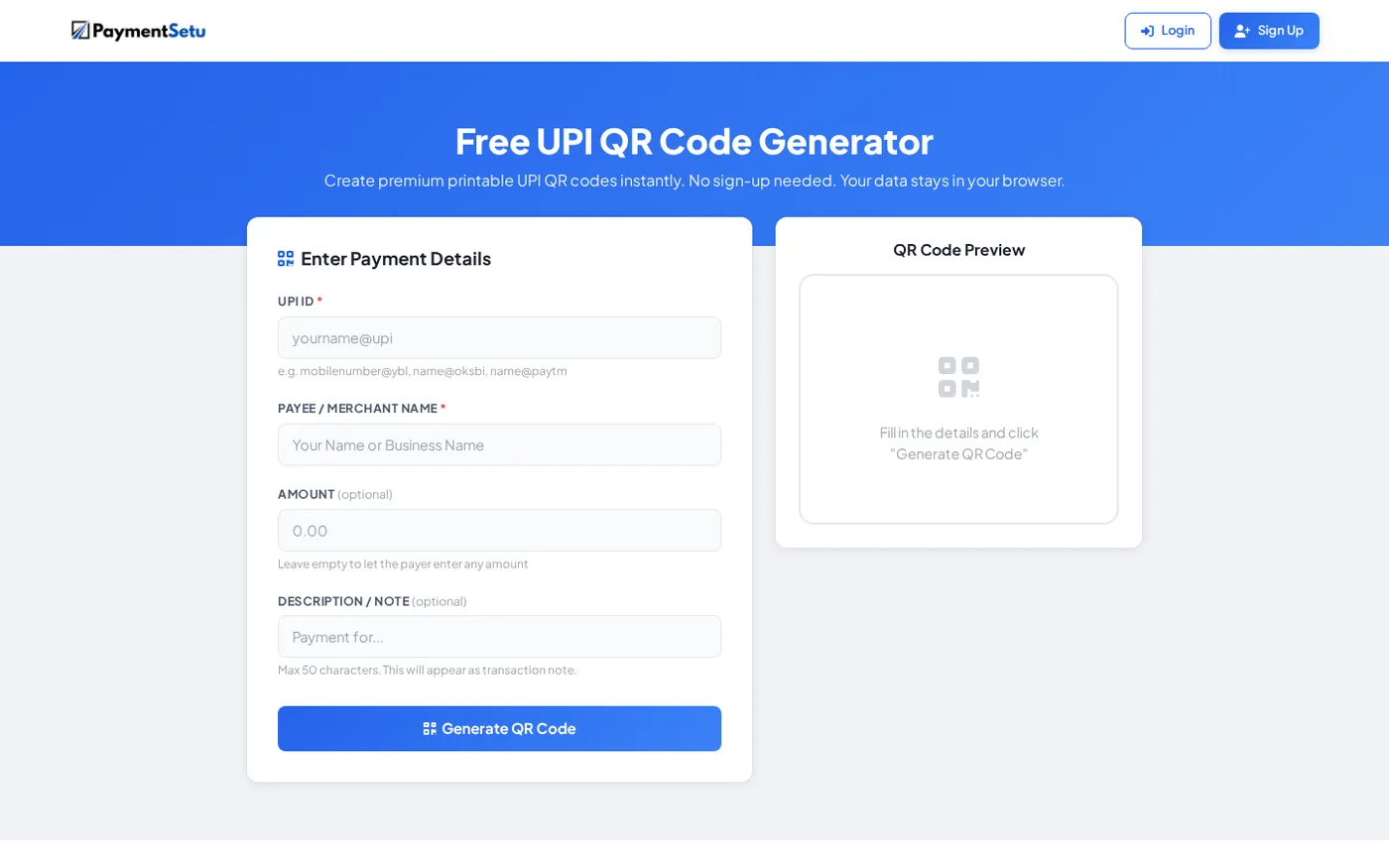
Open the free UPI QR Code Generator. It asks for the UPI ID and payee or merchant name, with optional fields for an amount and note.
The page keeps the form simple: enter the payment details on the left and use the QR preview on the right. You can refer to the generator screen shown here while filling in your own details.
Why this step matters: A QR is only useful if it encodes the right payment destination. Starting with the correct UPI ID is more important than making the sticker colourful.
Success looks like this: the generator page is open, the input fields are visible, and you are ready to enter the details from the merchant account that should receive payments.
Step 2: Enter your UPI ID and shop name
Fill the form in this order:
- Enter your business UPI ID in the UPI ID field.
- Enter your shop, trading or payee name in Payee / Merchant Name.
- Leave Amount empty for a general counter QR where every customer may pay a different bill.
- Add a short Description / Note only if it is useful for your normal counter payments.
- Select Generate QR Code.
Why this step matters: The UPI ID identifies where the money is sent, while the payee name helps you and the customer recognise the intended merchant before confirming payment.
The generator displays a QR preview after the details are accepted. Compare the UPI ID you entered with the source account one more time before downloading the image.
Success looks like this: a QR preview appears and the UPI ID and payee name you entered match your shop’s approved merchant details.
Should the QR have a fixed amount?
Leave the amount blank when the same sticker is used for different bills. A fixed amount is useful only for a repeatable payment, such as a set-price service or a standard fee; it can be confusing at a general shop counter because the customer may forget to change it.
The same rule applies to the note. Keep it generic if one sticker will be used for many customers. Never put a customer’s private order information on a sticker that will remain in public view.
Step 3: Download the PNG and keep the original
Download the generated PNG and save one untouched copy in your shop’s records. Use the original image for printing rather than taking a screenshot of the browser preview.
Why this step matters: A screenshot can include browser controls, extra whitespace or a scaled preview. The clean download gives the print shop a clearer source file.
Before sending it for printing, check that:
- The QR is square and has a clear white margin around it.
- No text or artwork overlaps the QR pattern.
- The image is not stretched wider or taller in a design program.
- The merchant name and UPI ID are printed beside or below the code in readable text.
- The print file has not been compressed into a blurry messaging-app preview.
If a print shop asks for a different file format, give them the original PNG first and tell them to preserve the square proportions. Ask for a proof at actual size before ordering several stickers.
Success looks like this: you have one original PNG, a square print layout with a clear margin, and no cropped or stretched version being used as the master file.
Step 4: Choose the right print size, paper and finish
The right size depends on how far away the customer will scan. The QR itself—not just the outer sticker—must be large enough for a phone camera to frame comfortably.
| Use case | Practical QR width | Suitable format | Finish |
|---|---|---|---|
| Billing counter, customer standing close | 7–10 cm | A6 card or small square sticker | Matte laminate or clear counter cover |
| Counter standee viewed across the desk | 8–12 cm | A5 standee | Matte laminate |
| Wall, entrance or queue area | 12–20 cm | A4 poster or larger board | Matte, wipeable surface |
| Temporary trial print | At least 5 cm | Plain paper | Test before laminating |
These are practical starting points, not a replacement for a final scan test. NPCI’s UPI FAQ explains that QR-based integration stores merchant information such as the merchant UPI ID and amount. The current BHIM-UPI guidelines also describe a 2 cm by 2 cm minimum for certain customised QR designs; for a shop counter, printing larger than that generally gives customers more room to aim their phone.
Why this step matters: A code that is too small, glossy or distorted wastes time at the billing counter and encourages customers to hold their phones at awkward angles.
Use a white or very light background with strong dark QR modules. Matte lamination is a sensible choice for a counter because it makes the card easier to wipe and reduces reflections compared with a glossy finish. If the sticker will be exposed to rain, oil or frequent cleaning, ask the printer for a water-resistant vinyl material.
Do not allow a border, logo, decorative pattern or another sticker to cover the QR’s clear margin. A larger plain code is more useful than a small code crowded with design elements.
Success looks like this: the printer has a flat, high-contrast proof at the planned size, with the QR’s clear margin intact and a finish suited to the shop’s environment.
Step 5: Print a proof and scan it from the customer’s position
Test the actual printed piece before sticking it permanently.
- Print one proof at the intended size, using the final paper or sticker material if possible.
- Place it where customers will see it.
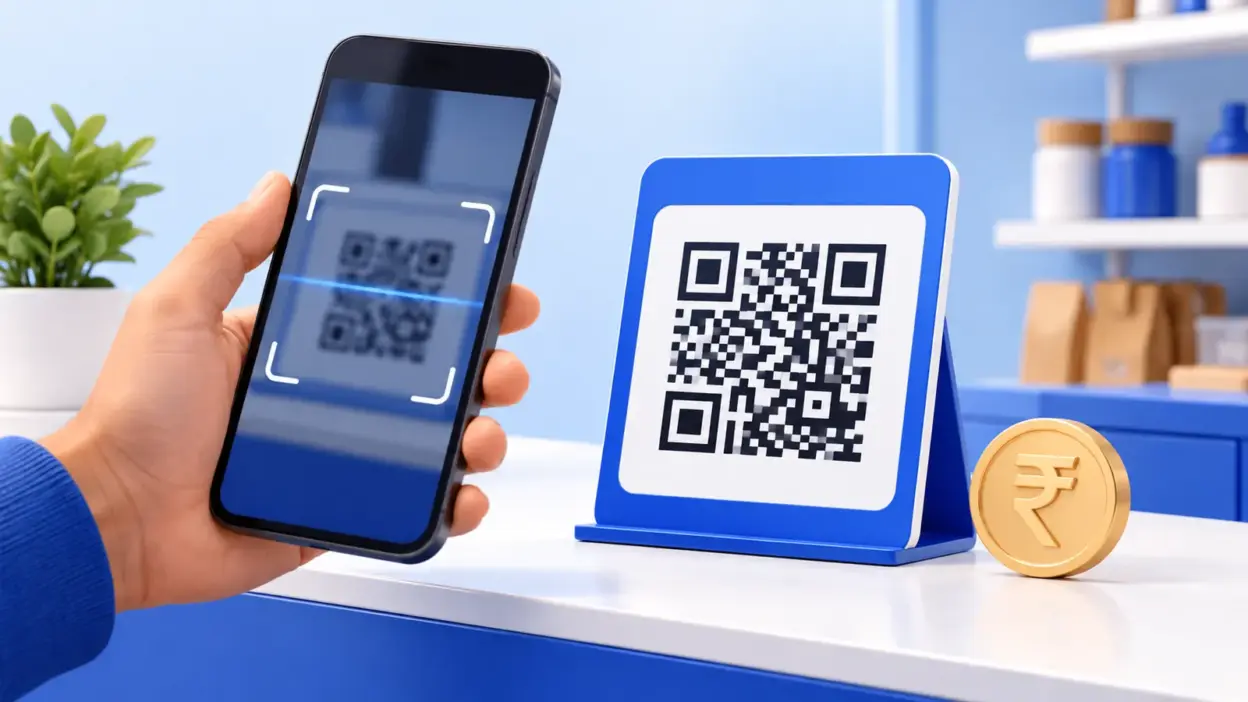
- Stand at the normal payment position and open your UPI app’s scan function.
- Scan the code in the shop’s usual lighting, including any counter glare.
- Confirm that the payment screen shows your expected merchant name and UPI ID.
- Do not confirm a payment just for testing unless you intend to make a real payment and can reconcile it.
- If the code does not scan, reprint it larger, remove glare, flatten the card or return to the untouched original PNG.
Success looks like this: the camera locks on without repeated attempts, the payment screen opens, and the displayed payee details match the account that should receive the shop’s money.
Do not use a QR that opens a different payee account, shows an unexpected name or requires a customer to follow an unfamiliar payment instruction. Regenerate it from the correct UPI ID and test again.
Step 6: Apply the sticker at the counter
Choose a position that is visible before the customer hands over cash or a card. The best location is usually beside the billing screen, on a small standee facing the customer or on the front of the counter.
Place it where:
- A customer can hold a phone straight and steady.
- The code is not hidden behind a jar, product display, glass edge or billing machine.
- The surface is flat and clean before application.
- Overhead lights do not reflect directly into the phone camera.
- Your shop name and UPI ID remain visible around the QR.
For a wall or entrance display, mount the code at a comfortable viewing height and make it larger than a counter sticker. For a food counter or a surface that is wiped often, a laminated card in a small stand can be easier to replace than adhesive vinyl.
Keep one spare tested print in the shop. A spare lets you replace a torn or wet sticker without rushing to recreate the QR during a busy period.
Why this step matters: Placement affects whether customers can frame the code easily, and a damaged display can interrupt otherwise straightforward payments.
Success looks like this: the QR is visible from the payment position, the phone can be held steady, and the display is protected without direct glare on the code.
Step 7: Check the sticker for tampering
A printed QR is a payment instruction, so treat it like a cash-handling control. Someone who covers it with another QR may redirect a customer’s payment to a different account.
At the start of the day, or whenever the counter changes hands, do this quick check:
- Look for a second sticker placed over the original.
- Check the corners and clear margin for pasted paper, tape or a lifted laminate.
- Scan the code yourself.
- Compare the displayed payee name and UPI ID with your approved merchant account.
- Remove the display from service if the details do not match, then replace it with your verified spare.
Tell staff one simple rule: a customer should never be asked to scan a different QR shown on a personal phone for a shop payment. The code must be the shop’s verified display, and the customer should review the payee details before confirming.
Also remind customers that scanning a QR and entering a UPI PIN authorises a payment. NPCI’s fraud-awareness guidance specifically warns that a UPI PIN is used for making payments, not for receiving money. A shop should never ask a customer to enter a PIN to receive a refund or cash-back.
Why this step matters: A quick daily check can reveal a covered or replaced QR before a customer sends money to the wrong payee.
Success looks like this: the QR scans to the shop’s approved merchant details, and staff know to remove and replace any display that does not match.
Static sticker or dynamic QR for online orders?
A static sticker is reusable: it points to your UPI ID, while the customer enters the amount. That makes it a good fit for a retail counter, stall, salon, repair desk or other in-person sale where you can see the order and check the payment.
Online orders create a different matching problem. If several customers pay similar amounts, a screenshot does not reliably tell you which order is paid. You need the payment request and your order record to be linked before you mark the order complete.
Use an order-wise dynamic QR when you need to:
- pre-fill the exact order amount;
- associate a payment with a unique order or invoice;
- receive a server notification after the payment is matched;
- reduce manual checking for WooCommerce, WHMCS or a custom checkout; or
- reconcile a larger number of UPI payments against orders.
PaymentSetu is a payment verification service, not a payment gateway. The customer pays directly into your own Paytm Business or PhonePe Business merchant account; PaymentSetu matches the UTR and amount to the dynamic QR or order and sends a webhook. It does not hold the money.
For a WooCommerce store, see the PaymentSetu WooCommerce plugin. For a hosting business using WHMCS, the WHMCS gateway module handles the corresponding invoice flow. A shop that only needs a physical counter sticker can start with the free generator; move to dynamic QR verification when online order matching becomes part of the workflow.
A simple maintenance checklist
Print this checklist near the billing desk:
- [ ] The displayed QR belongs to the shop’s approved UPI ID.
- [ ] The merchant name shown after scanning is expected.
- [ ] The QR is clean, flat, dry and free from overlays.
- [ ] The code is large enough for the normal scan distance.
- [ ] The clear margin is not covered by tape, artwork or another QR.
- [ ] The display is easy to see and does not catch direct glare.
- [ ] Staff know that a UPI PIN is never needed to receive money.
- [ ] Online orders use a unique payment reference or dynamic QR when manual matching is no longer practical.
FAQ
How do I make a UPI QR code sticker for my shop?
Open a UPI QR generator, enter your business UPI ID and payee name, leave the amount blank for variable bills, and download the generated PNG. Print it at a readable size, laminate or protect it, then scan the finished sticker to confirm the displayed payee details.
What is the best size for a shop QR code sticker?
For a normal billing counter, start with a QR that is about 7–10 cm wide and test it from the customer’s position. Use a larger code for a wall or a display scanned from farther away; the final test in the real lighting matters more than a single universal size.
Can I print a UPI QR code on paper?
Yes. Paper is suitable for a trial or a temporary display, provided the QR stays flat, clean and readable. For a busy counter, use matte lamination or a wipeable card so moisture, fingerprints and cleaning do not damage the print.
Should I use a static or dynamic UPI QR for my shop?
Use a static QR for in-person payments where the customer enters the amount and you can check the payment. Use a dynamic QR for online orders or invoices when each payment needs to be tied to a specific order and verified automatically.
Is it safe to scan any QR code to receive money?
No. Scanning a QR and entering a UPI PIN authorises a payment from the account. Before paying, check the payee name and amount; never enter a PIN because someone says it is required to receive a refund or payment.