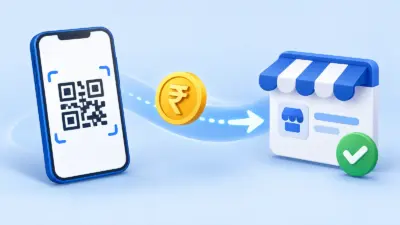

If you are searching for how to integrate upi payment gateway in website, you have two practical routes: use a conventional payment gateway, or let customers pay directly to your own UPI merchant account and automate verification. The second route can give you a checkout QR, order matching and a webhook without routing the money through a gateway.
This guide shows the direct-merchant-account flow with PaymentSetu. It is a payment verification service, not a payment gateway: the customer pays your connected Paytm Business or PhonePe Business merchant account, PaymentSetu matches the UTR and amount to your order, and your server receives a webhook.
Two ways to take UPI on a website
The right architecture depends on what you need your checkout to do. A traditional gateway can provide a hosted checkout and multiple payment methods. A direct UPI verification setup focuses on UPI, keeps the money moving straight to your own merchant account, and adds the automation needed to update an order.
| Approach | What happens after checkout | Best fit |
|---|---|---|
| Direct UPI + verification service | Your site creates an order, displays a unique QR, the customer pays your own merchant account, and a verified webhook updates the order. | Indian stores, services and SaaS businesses that primarily need UPI and want 0% commission on payments. |
| Traditional payment gateway | Your site creates a gateway order, the customer pays in the gateway flow, and your site handles the gateway result and settlement process. | Stores that need a wider set of payment methods in one hosted checkout. |
UPI itself supports several merchant integration modes, including QR, intent, application-based and collect modes, as documented by the National Payments Corporation of India. This article uses a dynamic QR because it can carry the order amount and a unique reference, making reconciliation safer than asking customers to send a screenshot.
What you need before starting
Prepare these items before touching your checkout code:
- A PaymentSetu-compatible merchant account. PaymentSetu currently connects to Paytm Business and PhonePe Business merchant accounts.
- A PaymentSetu account and API key.
- A public HTTPS webhook URL on your server. It should accept POST requests and return a successful HTTP response after it has safely processed an event.
- An order table with a unique order ID, amount, status and payment reference fields.
- A checkout page that can display a QR image or QR payload and tell the customer exactly how much to pay.
Keep the API key and webhook secret on your server. Do not put either value in browser JavaScript, a mobile app bundle or a public repository.
Step 1: Connect your merchant account and create an API key
Why this matters: the payment must land in your own merchant account, while the API key allows your website to create and check orders.
- Create or sign in to your PaymentSetu account.
- Connect your Paytm Business or PhonePe Business merchant account in the dashboard.
- Create an API key and store it in your server-side environment configuration, not in a page template.
- Add your webhook URL in the dashboard and save the signing secret your application will use to validate webhook requests.
- Give your server permission to reach the PaymentSetu API over HTTPS.
Success looks like: the connected merchant account is visible in your dashboard, the API key is stored server-side, and the webhook URL is saved without exposing credentials to visitors.
Step 2: Create a unique order on your server
Why this matters: creating the order on the server lets you bind one amount and one reference to the customer’s checkout before showing a QR.
When the customer clicks Pay, first create or load your local order. Generate a unique client_txn_id, save the amount in the smallest unit or decimal format required by your integration, and then call PaymentSetu’s order endpoint:
POST /api/create_order
Authentication: your PaymentSetu API key
Input: your unique client_txn_id and the exact order amount
A framework-neutral server flow looks like this:
order = orders.create(status="pending", amount=cart.total)
client_txn_id = "order-" + order.id

payment_order = paymentsetu.create_order(
    client_txn_id=client_txn_id,
    amount=order.amount,
    api_key=PAYMENTSETU_API_KEY
)

orders.save_payment_reference(order.id, client_txn_id)
return the QR data from payment_order to the checkout page
Use the exact request and response field names from the current PaymentSetu API documentation in your language. The important rules are stable: never accept the amount from an untrusted browser field without recalculating it from the cart, never reuse a transaction ID for a different order, and never create the order from client-side code with your API key.
Success looks like: your database contains a pending order and unique reference, and the server has received the data needed to render that order’s dynamic QR.
Step 3: Show the dynamic QR and payment instructions
Why this matters: the customer needs a clear, order-specific payment target and amount, while your system needs a reference it can match later.
On the checkout page, show the QR returned for the new order and the exact amount. Add a short instruction such as “Scan this QR, confirm the amount in your UPI app, and keep this page open while payment is verified.” On mobile, you can also offer the UPI intent or app-based option if it is available in your chosen integration; the QR remains useful for customers paying from another device.
Do not ask the customer to upload a screenshot as proof of payment. A screenshot is only a claim. Your fulfilment decision should come from the verified transaction notification or a server-side status check.
For each displayed order, keep these values together in your database:
| Field | Why you need it |
|---|---|
| Local order ID | Connects the payment to the cart, invoice or service. |
client_txn_id | Lets the callback identify the intended order. |
| Expected amount | Prevents a payment for a different amount being accepted silently. |
| Payment status | Keeps pending, paid and other states separate. |
| UTR and event ID | Helps reconciliation and duplicate-event handling. |
Success looks like: the QR displays on desktop and mobile, the amount matches your order total, and the customer can see which order is waiting for payment.
Step 4: Receive the webhook and mark the order paid
Why this matters: the webhook is the server-to-server confirmation your application should use before delivering goods, access or services.
Create a POST handler at the URL you registered. When an event arrives:
- Read the raw request body before parsing JSON.
- Verify the HMAC signature with your webhook secret and compare signatures using a constant-time comparison.
- Parse the event only after the signature is valid.
- Find the order using the event’s transaction reference.
- Confirm the received amount matches the order amount.
- Confirm the event represents a successful verified payment and record the UTR.
- In one database transaction, mark the order paid and trigger fulfilment.
- Store the event ID and return a 2xx response.
Make the handler idempotent. If the same valid webhook is delivered again, return success without creating a second shipment, account credit or service activation. A payment status page can poll your own backend, and your backend can call the order-status endpoint when a webhook is delayed or when you need a reconciliation check:
GET /api/order_status/{client_txn_id}Do not mark an order paid just because the browser returned to a success URL. The browser belongs to the customer and can be closed, replayed or altered; the signed server notification and your amount/reference checks are the authoritative application inputs.
Success looks like: a genuine payment produces one paid order, one recorded UTR, one fulfilment action and a safe response to repeated webhook deliveries.
Step 5: Add a recovery and reconciliation path
Why this matters: a production checkout needs a controlled way to find pending orders and investigate a payment without relying on manual messages.
Add a small background task or admin action that:
- Lists orders still marked pending after the time window you choose.
- Calls
GET /api/order_status/{client_txn_id}from your server. - Compares the returned status and amount with your local order.
- Records the UTR and provider event details when the payment is confirmed.
- Leaves an audit trail instead of overwriting the original order amount or reference.
If your application displays usage or capacity to administrators, the credits endpoint is available at GET /api/check_credits. Treat credits as an operational check, not as a payment status. A credit balance does not prove that a particular customer paid.
Success looks like: support staff can trace an order from your local ID to its transaction reference and UTR without asking for a screenshot or changing the order by hand.
No-code route: WooCommerce and WHMCS plugins
If your website already runs on WooCommerce or WHMCS, you do not need to write the create-order and webhook plumbing yourself.
WooCommerce
Download the PaymentSetu WooCommerce plugin, then:
- Upload
paymentsetu-gateway.zipfromPlugins > Add New > Upload Pluginand activate it. - Open
WooCommerce > Settings > Paymentsand enable PaymentSetu. - Copy the webhook URL shown in the plugin settings.
- Add that URL when creating your PaymentSetu API key, then paste the API key back into the plugin settings.
- Place a test order and confirm that the order changes only after payment verification.
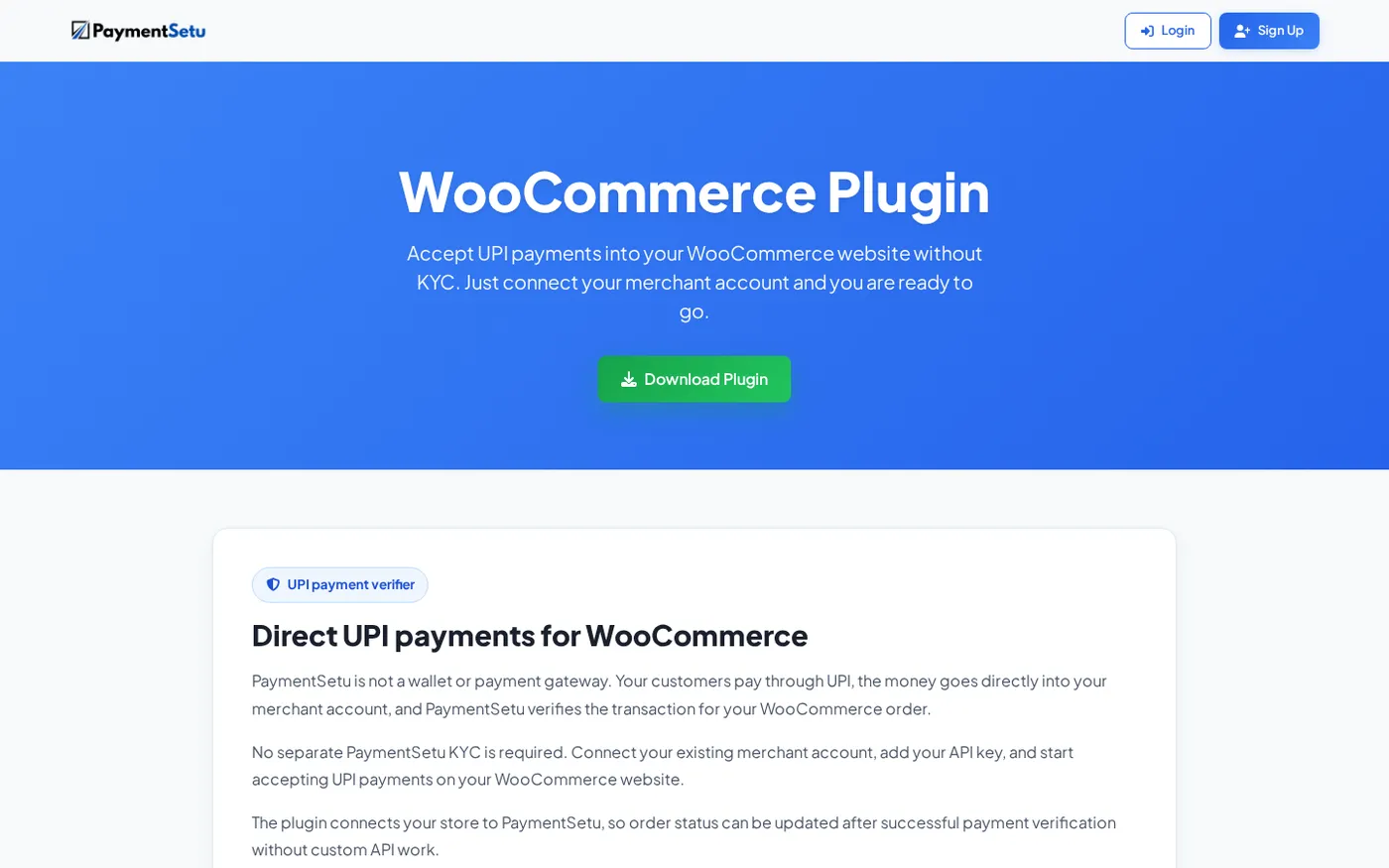
The plugin connects the checkout to your PaymentSetu account, shows the UPI payment option, and uses the verified webhook to update the WooCommerce order. It works with a PaymentSetu plan; the plugin download itself is free.
WHMCS
For a hosting business, use the PaymentSetu WHMCS module:
- Upload
paymentsetu.phptomodules/gateways/and the callback file tomodules/gateways/callback/. - Open
Setup > Payments > Payment Gatewaysand activate PaymentSetu. - Copy the callback URL shown in the gateway settings.
- Add the callback URL to your PaymentSetu API key configuration and paste the API key into WHMCS.
- Test a hosting, domain or service invoice and confirm that WHMCS marks it paid after verification.
This route is useful for hosting renewals and service invoices because the invoice reference is already available to the module. You still need to protect the API key, validate callbacks and make fulfilment idempotent.
Step 6: Test before going live
Why this matters: a successful QR scan is only one part of the integration; the complete test is order creation, payment, verification, callback handling and fulfilment.
Run this checklist on a staging checkout or a controlled test order:
- Create an order and confirm that the amount and
client_txn_idare saved. - Scan the QR from a separate device and verify the merchant name and amount before approving the payment.
- Confirm that the money reaches your connected merchant account and that the webhook contains the matching reference and amount.
- Confirm that your order becomes paid exactly once.
- Replay the same webhook and verify that no second fulfilment occurs.
- Send an invalid signature to your webhook endpoint and confirm that it is rejected.
- Close the payment page, reopen the order and test the server-side status/recovery path.
- Check a pending, successful and already-processed order in your admin view.
If you use WooCommerce or WHMCS, also test the platform’s email, stock, invoice and service-activation actions after the verified payment event.
Success looks like: you can demonstrate a complete order lifecycle and explain what your application does for a valid event, duplicate event, invalid signature and pending order.
Troubleshooting common integration mistakes
The QR appears, but the order never becomes paid. Check that the webhook URL is public HTTPS, the API key is correct, and the event reference is being matched to the same client_txn_id you saved. Inspect your server logs without logging secrets.
The webhook returns an error. Confirm that your handler reads the raw body for HMAC validation, accepts POST requests, and returns a 2xx response only after safely recording the event. Check that your server is not rejecting the content type or timing out before the response.
The customer says they paid, but the order is still pending. Do not fulfil from a screenshot. Use the order-status endpoint and compare the verified amount, reference and UTR with your order; then fix the callback or reconciliation path that failed.
The same order is fulfilled twice. Add a unique constraint or an atomic status transition around the event ID and order ID. A repeated webhook must be harmless.
FAQ
Can I accept UPI on my website without a payment gateway?
Yes. You can show a QR that points to your own supported UPI merchant account and use a payment verification service to match the payment to an order. Your website still needs secure server-side order creation, verification and fulfilment logic.
Is PaymentSetu a UPI payment gateway?
No. PaymentSetu is a payment verification service. The customer pays your connected Paytm Business or PhonePe Business merchant account directly; PaymentSetu matches the transaction and sends the webhook that your website uses to update the order.
How do I add UPI to WooCommerce without custom API code?
Install the PaymentSetu WooCommerce plugin, enable it under WooCommerce > Settings > Payments, copy its webhook URL, and connect the API key. The plugin handles the checkout connection and order update after verification.
Which API endpoints are needed for a custom website?
Start with POST /api/create_order to create the order, GET /api/order_status/{client_txn_id} for a server-side status check, and GET /api/check_credits for account usage. Configure the HMAC-signed webhook as the normal payment confirmation path.
How much does direct UPI verification cost?
PaymentSetu charges 0% commission on payments. The Pro plan is ₹999 per 30 days for 1,000 credits, where one credit equals one successful payment verified; it also includes dynamic QR, webhooks, API access, a unified dashboard, real-time notifications and priority support.
DONE accept-upi-payments-on-website-without-gateway words=2283