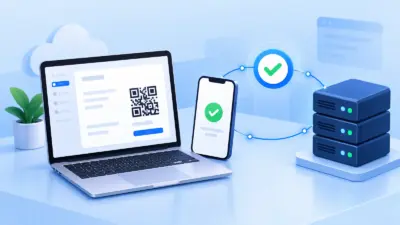

If you search for “whmcs invoice not marked paid”, start with one question: did WHMCS receive the payment callback? This guide walks you through the callback, invoice, amount, currency, module, and automation checks, then gives you a clean PaymentSetu setup to verify UPI payments automatically.
Before you start
Keep the invoice number, the amount the customer paid, the invoice currency, the payment time, and the UPI transaction reference available. You also need WHMCS administrator access, access to your server or Cloudflare dashboard, and access to the payment module settings.
Do not mark the invoice paid only because a customer shares a screenshot. First confirm the payment in your own merchant account and match it to the correct invoice. Then use WHMCS logs to find out whether the confirmation reached your installation.
Step 1: Confirm the payment and invoice details
Why this helps: a callback cannot correctly update an invoice if it refers to the wrong invoice number or a different amount.
- Open the invoice in WHMCS and note its invoice number, status, currency, and total due.
- Check your connected UPI merchant account for the actual successful payment.
- Compare the paid amount and transaction reference with the invoice. Include taxes, credits, late fees, or any other adjustment that changed the amount due.
- Check that the customer paid the current invoice, not an older or already-paid invoice.
Success looks like: you have one successful payment, one WHMCS invoice number, one transaction reference, and the amount and currency agree.
If the money is not visible in your merchant account, stop here and investigate the payment itself. If the money is present but the invoice is still unpaid, continue with the callback checks below.
Step 2: Understand how WHMCS marks an invoice paid
Why this helps: returning the customer to a “thank you” page is not the same as notifying WHMCS.
The usual flow is:
- The customer opens the WHMCS invoice and chooses the payment method.
- The payment service receives or verifies the payment.
- A server-to-server notification is sent to the module’s callback file.
- The callback validates the notification, invoice ID, and transaction ID.
- WHMCS records the transaction and applies it to the invoice.
WHMCS documents this callback workflow with checkCbInvoiceID, checkCbTransID, logTransaction, and addInvoicePayment. The customer’s browser return URL may show a success page, but it should not be your only evidence that WHMCS received the payment. See the WHMCS callback file documentation for the distinction.
Success looks like: the payment notification reaches the callback URL and WHMCS records a transaction against the same invoice.
Step 3: Check the WHMCS Gateway Log first
Why this helps: the Gateway Log tells you whether WHMCS saw a payment return and, if it did, how it classified it.
- In the WHMCS admin area, open Billing > Gateway Log.
- Filter by the invoice number, transaction reference, or the time of the payment.
- Read both the Result and Debug data. Do not rely only on the invoice status.
- Record whether the entry is Successful, Invalid, or Error.
WHMCS describes a Successful entry as a return it could identify and process. An Invalid entry can indicate unexpected data such as an incorrect invoice ID or a payment value that does not match. An Error entry means the data could not be verified or contained an error. The WHMCS Gateway Log guide explains these result types.
Use the result to choose your next fix:
| Gateway Log result | What it usually means | Next check |
|---|---|---|
| No matching entry | WHMCS may not have received the callback | Step 4 and Step 5 |
| Invalid | The callback arrived but data did not match | Step 1 and Step 6 |
| Error | The module could not validate or process the data | Debug data, module settings, and Step 8 |
| Successful but invoice is unpaid | Check invoice selection, duplicate handling, and transaction details | Step 1 and the transaction record |
Success looks like: you can explain the invoice status from a specific Gateway Log entry, or you have confirmed there is no entry and are testing reachability.
Step 4: Check the callback URL, not just the return URL
Why this helps: a correct-looking customer redirect does not prove that the server-to-server callback URL is correct.
- Open the PaymentSetu gateway settings in WHMCS and copy the callback URL shown there.
- Compare it character by character with the callback URL saved in PaymentSetu.
- Check the protocol, hostname, WHMCS path, filename, and trailing characters. Use the public HTTPS URL that your billing installation actually serves.
- Confirm that the callback file is in the module’s callback directory and that the module name in the URL matches the installed module.
- Review your web-server access log for a request at the payment time. A request with no access-log entry has not reached the web server.
Do not use a browser visit as a payment test. A callback normally expects a signed or structured notification, so a plain GET can be rejected even when the route is reachable. Use a real low-value test payment or a documented test notification, and keep the invoice number and timestamp ready for log matching.
Success looks like: the callback URL saved in both systems is identical and the web-server log shows a request when the test payment is completed.
Step 5: Check firewall, Cloudflare, and HTTPS rules
Why this helps: a WAF, security plugin, basic-auth rule, redirect, or TLS problem can block a callback before PHP or WHMCS sees it.
- Check the firewall or Cloudflare security events for the callback request time.
- Look for a block, challenge, rate limit, bot check, authentication prompt, or country rule on the callback path.
- Make sure the callback route accepts HTTPS
POSTrequests and does not require a logged-in WHMCS admin session. - Check that the URL does not redirect from HTTP to HTTPS, from one hostname to another, or from a non-www hostname to a www hostname during the notification.
- Review the web-server error log and PHP error log for TLS, permission, PHP, or timeout errors.
Allow only the specific callback route or documented source where your security setup supports that safely. Do not turn off all firewall protection as a troubleshooting shortcut. If Cloudflare sits in front of WHMCS, compare the Cloudflare event with the origin access log: an edge block appears in the first, while an origin application error appears in the second.
Success looks like: the notification reaches the origin over HTTPS without a challenge or redirect, and the callback request appears in the web-server log.
Step 6: Match currency, amount, and invoice state
Why this helps: WHMCS can receive a callback and still reject it when the payment details do not match the invoice it is supposed to settle.
- Check the invoice currency in WHMCS and the currency configured for the payment method.
- Compare the invoice total with the amount in the payment record. Check decimal places and rounding.
- Include tax, discounts, credits, domain changes, late fees, and partial payments in your comparison.
- Confirm that the invoice number in the callback is the internal WHMCS invoice number expected by the module.
- Check whether another transaction has already been recorded for the same reference. WHMCS callback helpers use transaction IDs to prevent duplicate payments.
For multi-currency WHMCS installations, review Configuration > System Settings > Currencies and the gateway’s processing currency. WHMCS supports converting an invoice to the currency required by a gateway through Convert To For Processing, but the setting must be deliberate and the conversion rate must be correct. Do not change a paid invoice’s currency just to make one callback pass; correct the gateway and invoice configuration first.
Success looks like: the callback invoice ID, currency, payable amount, and unique transaction reference all match the WHMCS record.
Step 7: Verify cron and WHMCS automation
Why this helps: callbacks often apply a payment immediately, but some payment workflows and follow-up actions depend on WHMCS automation. A broken cron can leave related billing actions waiting even after the notification is received.
- Open Configuration > System Settings > Automation Settings and check the Automation Status indicator.
- Confirm that your server cron invokes the exact command shown by WHMCS for your installation.
- For a self-hosted installation, verify the cron runs every five minutes where your hosting environment allows it. WHMCS recommends this interval and says it should run at least hourly if five minutes is not possible.
- Check the cron output, server cron log, and WHMCS automation information for PHP-path, permission, timezone, or lock errors.
- Confirm that the WHMCS timezone and server timezone agree, especially if the invoice or transaction appears near midnight.
WHMCS’s current system-cron documentation gives an example such as */5 * * * * php -q /home/username/crons/cron.php, but the path and PHP binary must come from your own Automation Settings. Do not copy that example unchanged.
Success looks like: WHMCS reports a recent successful automation run, the server cron log shows the command executing, and the invoice is rechecked after the next run.
Step 8: Reinstall and configure the PaymentSetu module cleanly
Why this helps: a clean file and settings check removes common module-path, activation, API-key, and callback mismatches from the diagnosis.
- Download the current PaymentSetu WHMCS module.
- Upload
paymentsetu.phptomodules/gateways/and the supplied callback file tomodules/gateways/callback/. - In WHMCS, activate PaymentSetu under the payment gateway settings. The exact menu label varies by WHMCS version.
- Copy the callback URL displayed in the PaymentSetu gateway settings.
- Create a PaymentSetu API key and save that WHMCS callback URL in the PaymentSetu configuration.
- Paste the API key into the WHMCS PaymentSetu gateway settings and save.
- Connect your own supported Paytm Business or PhonePe Business merchant account.
- Create a new test invoice, pay the exact amount by UPI, and check the merchant account, Gateway Log, transaction record, and invoice status.
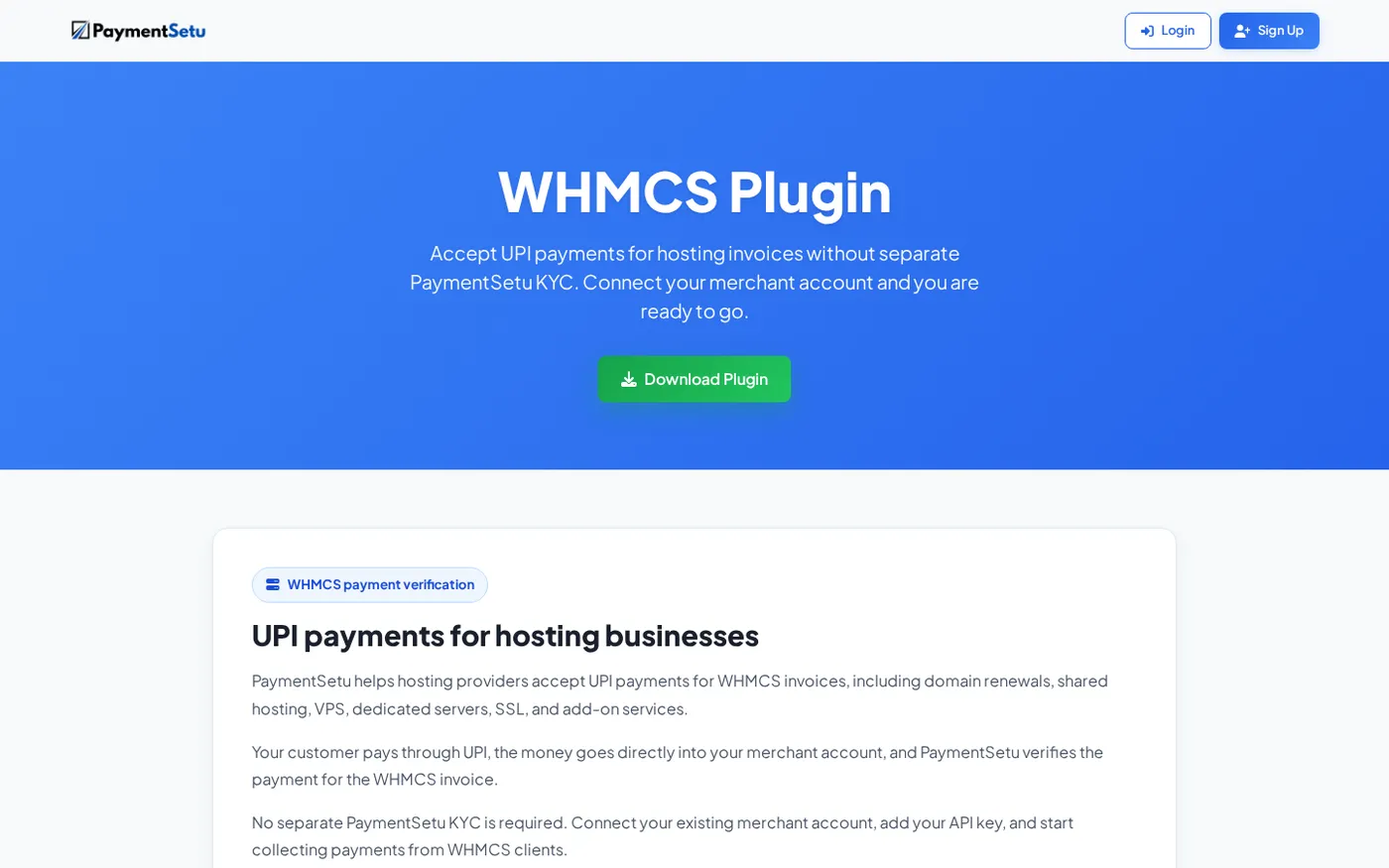
PaymentSetu is a payment verification service, not a payment gateway. Your customer pays directly into your own connected merchant account; PaymentSetu matches the payment to the dynamic QR or WHMCS order and sends the notification that lets the module update the invoice. The module page also has a visual setup overview:
Success looks like: the module is active, the API key and callback URL are saved in both places, the test payment is visible in your merchant account, and WHMCS changes the matching invoice to Paid.
Verify the fix safely
Run one controlled test rather than asking several customers to pay again. Use a fresh invoice with an unambiguous amount, note the exact payment time, and check these records in order:
- Successful payment in your connected merchant account.
- Callback request in the web-server access log.
- PaymentSetu or module response, where available.
- WHMCS Billing > Gateway Log entry.
- WHMCS transaction record linked to the invoice.
- Invoice status changed to Paid.
If the payment is real but the callback was not recorded, keep the invoice unpaid until you reconcile the transaction, then use WHMCS’s normal manual-payment process. Record the UPI transaction reference and the reason for the manual action so the invoice history remains understandable.
Troubleshooting quick table
| Symptom | Most likely branch | What to do |
|---|---|---|
| Customer sees success, but there is no Gateway Log entry | Callback did not reach WHMCS | Recheck the callback URL, WAF events, redirects, and origin access log |
| Gateway Log says Invalid | Invoice ID, amount, currency, or duplicate reference mismatch | Compare the callback data with the invoice and transaction record |
| Gateway Log says Error | Validation, API key, PHP, or module configuration issue | Read Debug data and server logs, then repeat the clean setup checklist |
| Invoice is still unpaid after a Successful entry | Payment may be attached to another invoice or still needs review | Open the transaction details and confirm the invoice number and amount |
| Automation status shows a problem | Cron is missing, failing, or running with the wrong PHP/path | Copy the command from Automation Settings and inspect the cron log |
| The payment method is missing from the invoice | Module is inactive or restricted for that product group/currency | Activate the module and review gateway visibility and currency settings |
For a broader comparison of WHMCS payment options and setup priorities, see our guide to the best WHMCS payment gateway options in India. When the goal is UPI verification into your own merchant account, the PaymentSetu WHMCS module keeps the integration focused on the invoice callback and webhook flow.
FAQ
Why is my WHMCS invoice not marked paid after payment?
The most common reason is that WHMCS did not receive or accept the payment callback. Check Billing > Gateway Log first: no entry points to callback reachability or configuration, while an Invalid or Error entry gives you a data or validation problem to fix.
Where is the WHMCS callback URL?
The module normally displays or defines the callback URL in its gateway settings. Copy that exact URL into the payment verification service configuration, including the HTTPS hostname, WHMCS path, and callback filename, then confirm the request appears in your web-server access log.
Can cron mark a WHMCS invoice paid?
Cron runs WHMCS automation and can complete work that is waiting for a scheduled task, but a real-time payment callback is usually the event that records the payment. Check both the callback path and cron status instead of assuming that a cron run can replace a missing notification.
How do I use the WHMCS Gateway Log to find the problem?
Open Billing > Gateway Log and search by invoice number, transaction reference, or payment time. Read the Result and Debug data: Successful, Invalid, and Error entries point to different next checks.
Does PaymentSetu hold the money for a WHMCS payment?
No. The customer pays by UPI directly into your own connected Paytm Business or PhonePe Business merchant account. PaymentSetu verifies the payment and sends the notification used to update the WHMCS invoice.
DONE whmcs-invoice-not-marked-paid words=2344