
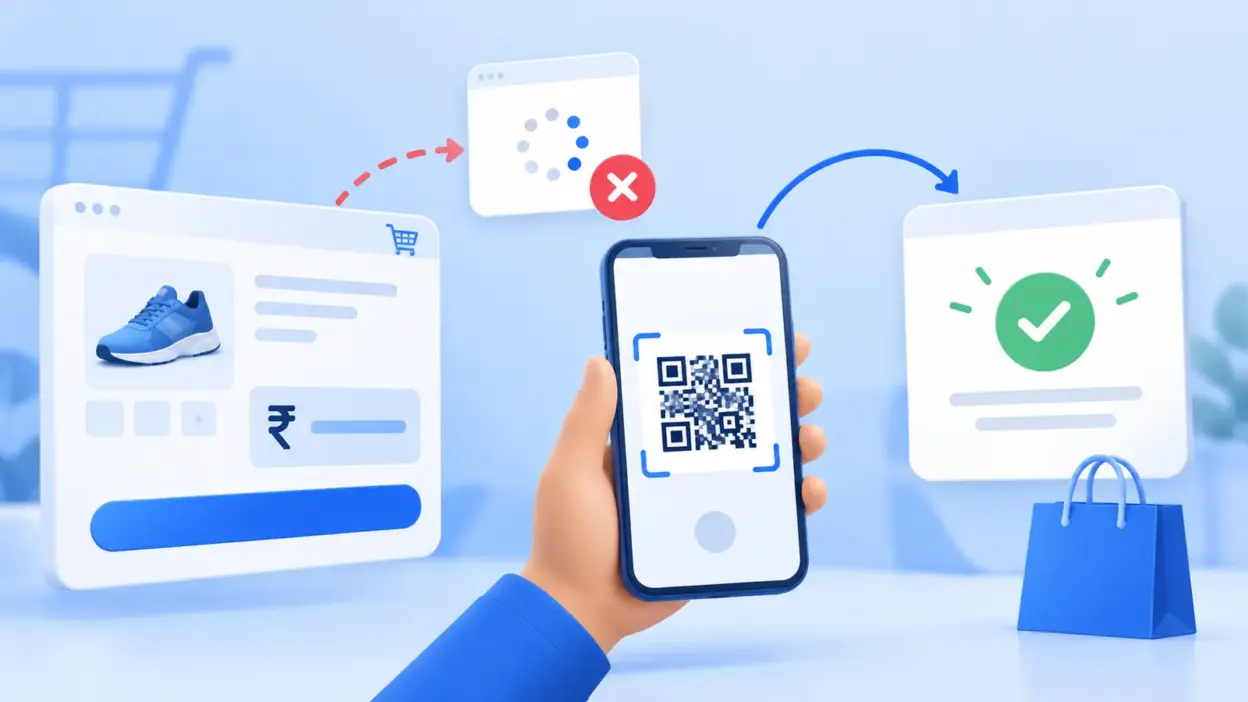
UPI checkout abandonment happens when a ready-to-buy customer has to guess the amount, switch between too many screens or wait without knowing whether the order went through. For an Indian WooCommerce store, the fix is usually a clearer payment journey and a dependable way to update the order after the customer pays.
Where UPI checkouts lose buyers
The payment itself may take only a few taps, but the surrounding checkout can add hesitation. A shopper may see a generic QR, leave the store to open a UPI app, return to a page that still says “Pay now”, and wonder whether trying again will create a duplicate payment.
Start by separating two problems:
| What you observe | Likely friction | What to improve |
|---|---|---|
| Many shoppers leave after selecting UPI | The next action or payment method is unclear | Show one obvious payment step and explain what happens next |
| Customers ask whether payment was received | The order page does not update after payment | Verify the transaction and update the WooCommerce order automatically |
| Paid orders remain pending | The store is waiting for a reliable notification | Check the webhook, callback and order-status flow |
| Customers report paying the wrong amount | The QR or instructions do not carry the order total clearly | Generate a QR for that order and display the amount beside it |
| Customers return to checkout and pay again | The first attempt has no visible status | Show a pending or confirmed state with a safe retry path |
Do not use a single abandonment percentage as your diagnosis. Check the funnel in your own store: checkout loaded, payment method selected, QR or payment page shown, payment attempt started, confirmation received and order marked paid. The largest drop between two events tells you where to test first.
8 fixes for UPI checkout abandonment
Treat each fix as a small change to the customer journey. Test the complete flow on a mobile phone, because that is where a customer may need to move between the store and a UPI app.
- Make UPI visible before the final click. Label the method plainly, such as “Pay by UPI”, and explain whether the customer will scan a QR or open a payment app. Do not make shoppers hunt through a long list of generic methods.
- Keep the checkout form focused. Ask for the information needed to fulfil the order. Remove optional fields that do not change delivery, support or invoicing. Fewer decisions make the payment step easier to understand, particularly on a small screen.
- Show the exact amount beside the payment action. The total should match the cart, including shipping, discount and tax where applicable. A customer should not have to remember a number from an earlier page or manually enter it into the UPI app.
- Reduce unnecessary redirects. Every new page, loading screen or unfamiliar domain creates another point where a shopper can pause. Use a short, consistent path: review order, see the amount and QR or payment action, pay, then return to a clear status page.
- Give the customer a visible payment state. “Payment started”, “Checking payment” and “Order confirmed” answer different questions. Do not show a success message before the transaction is verified, but do tell the customer what the store is checking and what to do if the status stays pending.
- Update the order from a server-side notification. A browser tab closing or a customer failing to return should not be the only signal that payment happened. A signed webhook can tell your store that the transaction matched the order, after which WooCommerce can move the order into its paid workflow.
- Make retrying safe. Keep the order reference and amount visible. If a customer returns to a pending order, let them continue from that order rather than silently creating a second one. Your verification logic should also treat repeated notifications for the same payment safely.
- Measure the reason for each drop-off. Review WooCommerce order statuses, payment logs and customer messages together. A drop after the QR appears points to a different fix from a drop caused by a checkout page that never finishes loading. Change one part of the flow, then compare the same funnel events over a meaningful period.
Show a clear QR with the exact amount
QR-based UPI is easier to trust when the customer can see who they are paying and how much. NPCI describes QR-based integration as storing merchant information and the amount in the QR, so the customer can see the merchant details on the payment screen. That is why a per-order QR with the correct amount is more useful than one generic shop QR pasted into every checkout.
Place the QR close to the order total. Under it, give short instructions:
- Open the UPI app on the same phone, or scan the QR from another device.
- Check the merchant details and amount before confirming.
- Complete the payment in the app.
- Return to the store and wait for the order status to update.
Avoid adding a paragraph of technical language to this screen. The customer needs a clear amount, a clear pay action and a clear explanation of what confirmation looks like. If you also accept other methods, keep them available without allowing the UPI path to become visually secondary.
Read the NPCI UPI FAQ for the underlying QR-based merchant flow and transaction-status guidance.
Confirm the order the moment the payment is verified
The most damaging gap is often after the customer has paid. They return to the store and still see “Pending payment”, or they receive no acknowledgement at all. That uncertainty can lead to a support message, a duplicate attempt or a lost sale even when the payment is present in the merchant account.
Use an event-driven sequence:
Create WooCommerce order
        ↓
Show order-specific UPI payment details
        ↓
Customer pays into the merchant's own UPI merchant account
        ↓
Payment verification matches the order reference, UTR and amount
        ↓
Signed webhook reaches the store
        ↓
WooCommerce order is marked paid and the customer sees confirmation
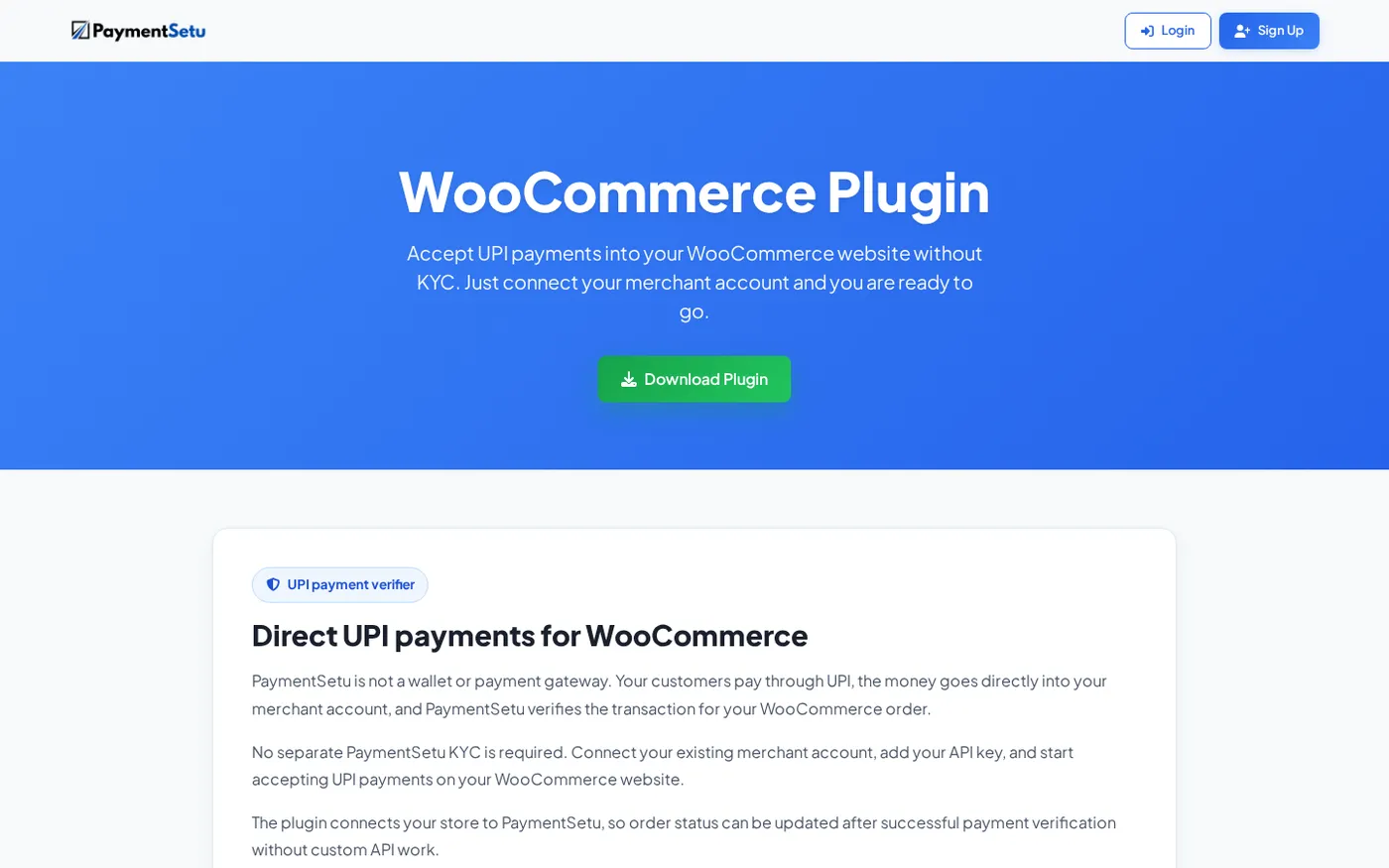
PaymentSetu is a payment verification service, not a payment gateway. The customer pays directly into the merchant’s own Paytm Business or PhonePe Business merchant account; PaymentSetu matches the payment to the dynamic QR or order and sends a webhook. It does not hold the money.
For WooCommerce, the PaymentSetu plugin provides the integration path without custom API work. It is a free download that works with a PaymentSetu plan, with plans starting at ₹399 per 30 days. The important conversion improvement is the customer-facing certainty: after verification, the store can update the order instead of relying only on the browser returning to the site.
Make “pending” useful instead of alarming
Payment confirmation is not the same as page navigation. WooCommerce documents “Pending payment” for an order received without payment and “On hold” for an order awaiting confirmation. Those statuses are useful only when the customer and store know what each one means.
On the customer page, include:
- the order number and exact amount;
- a short message that payment verification is in progress;
- an instruction not to pay again while the status is being checked;
- a safe way to continue or contact support if the order remains pending;
- a confirmation message and next step once the order is paid.
On the store side, inspect the order notes and notification path. WooCommerce’s payment troubleshooting guide recommends checking checkout configuration and explains how order statuses reflect the payment and fulfilment process. This gives you a practical starting point before changing the design.
Remove friction without removing trust
Shorter is not automatically better. A checkout that hides the merchant name, amount or status may look quick but makes a customer hesitate at the most important moment. The goal is a small number of understandable steps, with the right information repeated where the decision happens.
Use these checks during a mobile walkthrough:
- Can a first-time customer identify the UPI option without scrolling through unrelated text?
- Does the amount on the checkout, QR screen and payment app agree?
- Is the merchant identity recognisable before the customer confirms payment?
- Can the customer tell whether the order is awaiting payment, being verified or paid?
- If the browser is closed after payment, will the store still receive the notification?
- If the customer taps Pay twice, does the store avoid creating confusing duplicate orders?
- Does the confirmation page say what happens next: dispatch, download, account activation or support?
The WooCommerce payments documentation is useful when reviewing how payment methods fit into the checkout and order lifecycle. Then test your own plugin flow with real devices and small controlled orders before sending more traffic to it.
How to choose a WooCommerce UPI flow
Choose the implementation by asking what the store needs to know after a customer scans the QR. If you only need a static QR for a counter, a free QR generator may be enough. If you need each online order tied to its own amount and an automatic paid status, the checkout needs dynamic order details and verification.
For a WooCommerce store, the PaymentSetu plugin is designed for that second workflow:
- upload
paymentsetu-gateway.zip; - enable it under WooCommerce > Settings > Payments;
- connect your Paytm Business or PhonePe Business merchant account;
- configure the integration and test an order;
- confirm that the webhook changes the order after the payment is verified.
The customer pays into your own merchant account, while the plugin connects the order to the verification result. That keeps the checkout explanation simple: scan, check the amount, pay, and wait for confirmation.
When the flow is ready, create your PaymentSetu account and connect the plugin to your WooCommerce checkout.
FAQ
Why do customers abandon UPI checkout?
Common causes include an unclear payment method, an amount that is difficult to verify, too many redirects and no visible confirmation after payment. Measure where shoppers leave in your own checkout instead of assuming every drop is a UPI failure.
How can I reduce UPI checkout drop-off on WooCommerce?
Show UPI clearly, keep the form focused, display an order-specific QR and exact total, and provide a useful pending state. Most importantly, connect payment verification to a webhook so the order can update even if the customer does not return to the browser perfectly.
Should I use one static QR for every WooCommerce order?
A static QR can be useful for an in-person counter, but online orders benefit from a QR linked to the specific order and amount. That reduces manual entry and gives the store a clearer basis for matching the payment to the right order.
What should a customer see after paying by UPI?
They should see the order number, amount and a clear status such as checking payment or order confirmed. Tell them not to pay again while verification is in progress, and provide a support path if the status does not change.
Is PaymentSetu a payment gateway?
No. PaymentSetu verifies a payment made directly to the merchant’s own Paytm Business or PhonePe Business account, matches it to the order and sends a webhook to the store. The WooCommerce plugin connects that verification result to the order workflow.
DONE why-customers-abandon-upi-checkout words=1867