
A bhim upi id generator cannot invent a new bank-linked identity: BHIM or another UPI app creates your UPI ID after you verify your mobile number and link a bank account. Once the ID exists, you can turn it into a QR code for a counter, invoice, WhatsApp message or website.
This guide explains the complete process, including the difference between a personal UPI ID and a business merchant ID. It also shows how to create a printable QR with PaymentSetu’s free UPI QR code generator, without signing up.
What you need before you start
Keep these items ready:
- A bank account that supports UPI.
- The mobile number registered with that bank account, active in the phone you are using.
- A UPI app such as BHIM or your bank’s UPI-enabled app.
- Your debit card, if the app asks for the last six digits and expiry date while setting the UPI PIN.
- A merchant account instead of a personal account if you are collecting regular customer payments for a business.
Your app may use slightly different names for buttons such as Bank Account, UPI ID, VPA, Profile or My QR. The underlying process is the same: the app links an account and issues a virtual payment address, commonly called a UPI ID.
Step 1: Install a UPI app and verify your mobile number
Why this matters: your UPI profile must use the mobile number registered with your bank account.
- Install BHIM from the official app store, or open your bank’s official UPI app.
- Select your language and allow the app to verify your mobile number.
- If your phone has two SIMs, select the SIM containing the number registered with your bank.
- Set the app passcode if requested.
BHIM’s official setup guide lists language selection, the registered SIM and app passcode as part of first-time access. Do not share an OTP or passcode with anyone claiming to help you create a UPI ID.
Success looks like: the app takes you to its home screen and shows an option to link or select a bank account. If verification fails, check that the correct SIM is active and that the bank has your current mobile number.
Step 2: Link your bank account and set the UPI PIN
Why this matters: a UPI ID is an address for a linked bank account; it is not a standalone wallet or a number you can create on a random website.
- Open Bank Account, Add Bank Account or the equivalent option.
- Select your bank from the list.
- Choose the account fetched for your verified mobile number.
- Select Set UPI PIN if you have not already set one for that account.
- Enter the requested debit-card details and the OTP sent by your bank.
- Create the UPI PIN and confirm it.
BHIM says that its PIN setup can require the last six digits and expiry date of the debit card linked to the selected account. Your bank or app may show a different screen, so follow the prompts in the official app. A UPI PIN is used to authorise payments; you do not need to tell it to a customer who is paying you.
Success looks like: the selected account appears as linked, and the app shows it as your default account or lets you choose it for receiving money.
Step 3: Find and copy your UPI ID
Why this matters: the exact UPI ID is the value that must go into the QR code. One wrong character can send a payer to the wrong address or produce an unusable QR.
- Open Profile, My Profile, UPI ID, VPA or Bank Account in the app.
- Copy the full address, including the part after
@. - Check the app’s displayed account-holder name before sharing the ID.
- Save the ID in a secure business note or password manager if you will use it repeatedly.
In BHIM, the default address may look like mobilenumber@upi, and the official FAQ says you can add another VPA from the profile section. Other apps can issue a different handle, so always copy the address displayed by your own app rather than guessing one.
The UPI ID, also called the VPA, is not the same as your bank account number, IFSC code or UPI PIN. It is an address that helps the payer identify where the money should go.
Success looks like: you have a complete address such as yourname@handle copied from the app, and the app can display the matching account-holder name when the ID is checked.
Step 4: Turn the UPI ID into a QR code
Why this matters: a QR lets a customer pay without typing your UPI ID manually.
- Open PaymentSetu’s free UPI QR code generator.
- Paste your exact UPI ID in the UPI ID field.
- Enter the name you want the payer to see in Payee / Merchant Name.
- Leave Amount empty for an open QR, or enter a fixed amount for a specific invoice or item.
- Add an optional note such as
Order 1042orConsultation fee. - Select Generate QR Code.
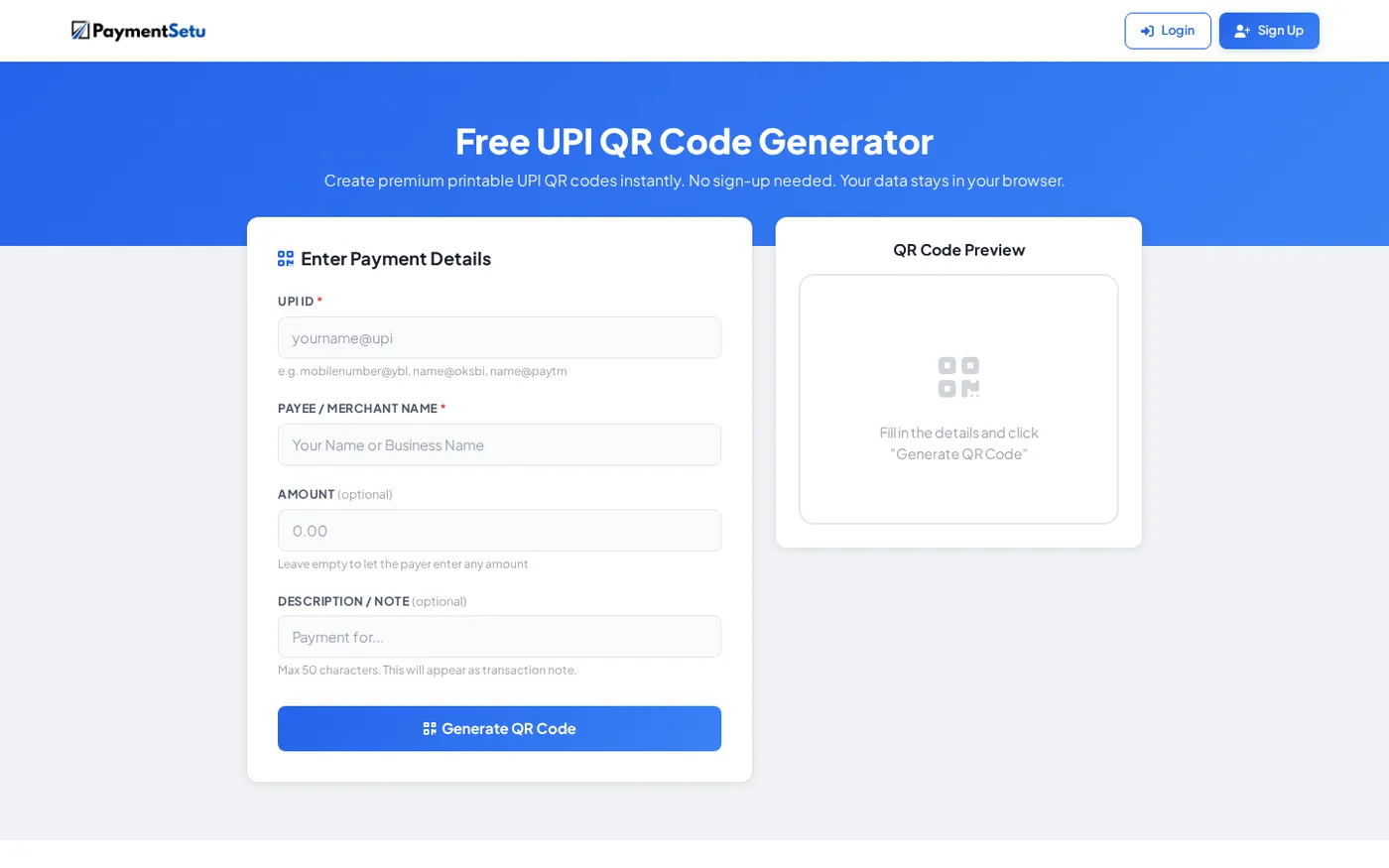
The generator creates a QR from the UPI ID you provide. It does not issue a bank-linked UPI ID, change your bank account or receive the payment for you. PaymentSetu says this free tool runs in the browser, needs no sign-up, and lets you download or print the result.
Success looks like: the QR preview appears with the details you entered. Scan it with a UPI app to check the payee name before you download or print it.
Step 5: Choose an open or fixed-amount QR
Why this matters: the amount setting changes what the payer sees after scanning.
| QR type | Amount field | Best use | What the payer does |
|---|---|---|---|
| Open QR | Leave it blank | Shop counters, tips, general collections | Enters the amount in the UPI app |
| Fixed-amount QR | Enter the exact amount | A known invoice, booking or service fee | Checks the pre-filled amount before paying |
Use an open QR when the amount changes from one customer to the next. Use a fixed amount when you want to reduce manual entry for one known charge. For a recurring business checkout, a merchant workflow can create an order-specific QR and match the payment to that order.
Step 6: Download, print and test the QR
Why this matters: a QR that looks clear on screen can become difficult to scan after a small print or a blurry screenshot.
- Download the generated PNG from the QR tool.
- Print it at a readable size with clear space around the code.
- Place the UPI ID or payment name below it so customers can cross-check the destination.
- Scan the printed or shared QR with another phone and confirm the payee name and amount.
- Stop before entering the UPI PIN unless you intentionally want to make a payment.
Keep the original PNG so you can reprint it without taking a photo of a photo. For online use, share the original image or place it on the invoice rather than sending a compressed screenshot.
Success looks like: the scanning app opens a payment screen with the correct payee and, when applicable, the correct fixed amount. A scan is not proof that money has been received, so check the bank or merchant account after a real payment.
Personal UPI ID vs business or merchant UPI ID
A personal UPI ID is suitable for sending and receiving personal payments. A business or merchant UPI ID is designed for collecting customer payments under a business profile, with the account and transaction records managed for that business.
| Choose a personal UPI ID when you need to | Choose a business UPI ID when you need to |
|---|---|
| Receive occasional payments from people you know | Collect payments from customers at scale |
| Share a simple QR for personal use | Display a business name and reconcile orders |
| Track activity in your personal bank app | Use merchant tools, order references or payment notifications |
| Keep collections separate from business checkout | Connect payment confirmation to a website, store or invoice |
Do not use a personal QR as the only control for a busy online store. A payment screenshot can be edited, and a customer-facing QR does not by itself tell your website whether the money arrived. For an online business, PaymentSetu connects to your own Paytm Business or PhonePe Business merchant account, matches the UTR and amount to the order, and sends a webhook after verification. It is a payment verification service, not a payment gateway, and the money goes directly to your own merchant account.
If you need only a printable code, use the free generator. If you need automatic order confirmation, see PaymentSetu’s payment verification service or create an account. WooCommerce stores can also review the free WooCommerce plugin.
How to verify a QR before sharing it
Use this short checklist for a counter display, invoice or social-media post:
- Scan the QR from the final printed or uploaded version.
- Confirm the displayed payee name matches your person or business.
- Confirm that an open QR allows the payer to enter an amount, while a fixed QR shows the intended amount.
- Compare the visible UPI ID with the one copied from your app.
- Replace the QR if the printed code is cut off, blurred or covered by a sticker.
- Tell staff to verify the bank or merchant notification, not only a screenshot shown by the payer.
NPCI’s UPI guidance explains that a QR can carry the payee’s virtual payment address and, for merchant payments, details such as the payee name, reference and amount. That is why checking the payment screen before authorising a payment is useful.
Troubleshooting a UPI ID or QR code
The app cannot find my bank account: confirm that the mobile number in the app is the same one registered with the bank. If it still does not appear, contact the bank or try the bank’s official UPI app.
I cannot set the UPI PIN: recheck the debit-card details requested by the app and wait for the bank OTP. Do not share the PIN or OTP; if the details are correct and setup still fails, ask your bank for help.
The QR opens the wrong name: return to the generator and paste the UPI ID again from your app. Scan the new QR and compare the displayed name before sharing it.
The QR will not scan after printing: print the original downloaded PNG at a larger size, keep white space around the code and avoid placing it behind glossy plastic or over a patterned background.
A payer says the payment is complete but you cannot confirm it: check the transaction in your bank or merchant account using the transaction reference. Do not mark an order paid from a screenshot alone.
FAQ
Is there a real BHIM UPI ID generator?
Yes, but it is the BHIM app or another UPI-enabled bank app that creates the bank-linked UPI ID. A QR generator such as PaymentSetu’s free tool converts an existing UPI ID into a scannable payment code; it does not issue the ID.
How do I create a UPI ID in BHIM?
Install BHIM, verify the mobile number registered with your bank, link the bank account and set a UPI PIN when prompted. BHIM says a default VPA is created after registration, and you can see the address and QR in My Profile. See the official BHIM FAQ for the current app flow.
Can I generate a UPI QR code without a UPI ID?
Not for a normal person-to-person or merchant UPI QR. First create or obtain a UPI ID from your bank or UPI app, then enter that exact ID into the QR generator. A QR made from an incorrect or guessed ID will not reliably direct payments to you.
Is a UPI QR code free to create?
PaymentSetu’s free UPI QR code generator is available without sign-up and supports download or print. Your bank or payment provider may have its own terms for the account behind the UPI ID, so check those separately.
Should a business use a personal UPI ID for customer payments?
A business should use its own business or merchant account when it needs customer-facing collections, records and order verification. A personal QR can be useful for occasional personal transfers, but a merchant workflow is better suited to regular business payments.