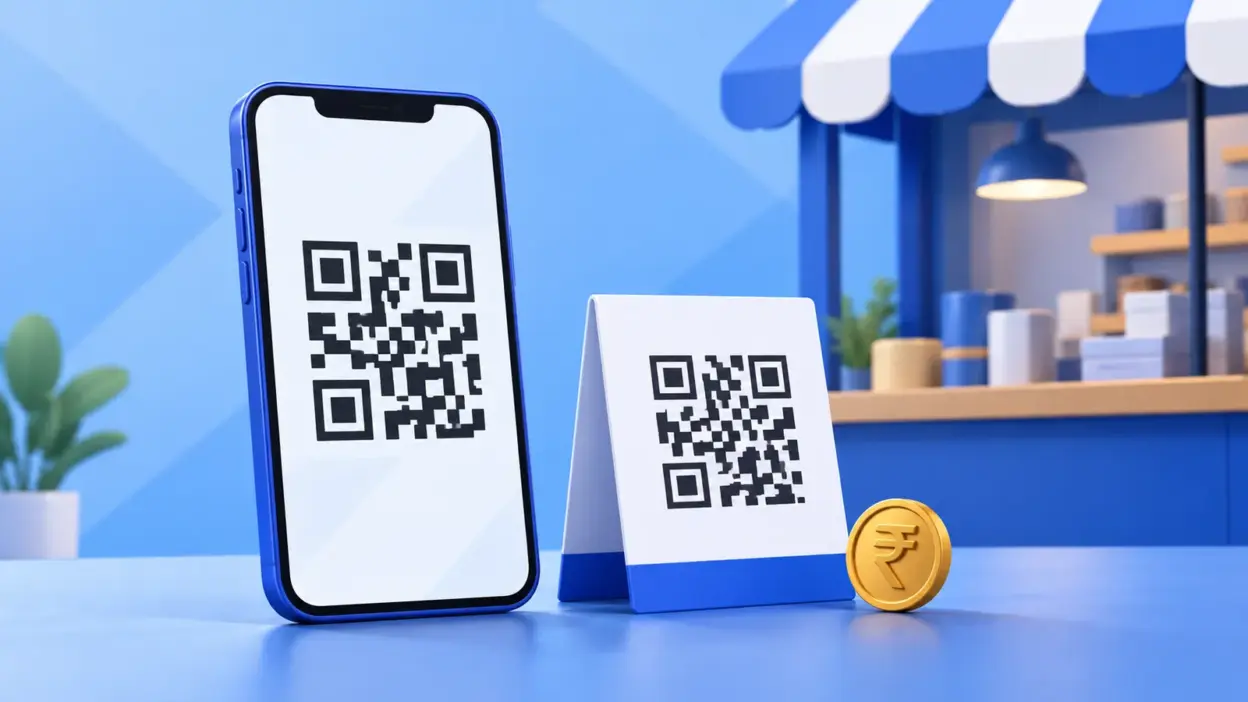
A UPI QR generator lets you turn a UPI ID into a scannable payment QR for a shop counter, invoice, stall or service business. This guide shows you how to create one free, check the details before sharing it, and decide when a simple static QR should become an order-wise dynamic QR.
What you need before creating a UPI QR
Keep these details ready:
- The UPI ID that should receive the money, such as
yourname@upi. - The payee or merchant name that customers should see after scanning.
- An amount, only if this QR is for a known fixed price.
- A short note, if you want to identify the purpose of the payment.
- A second phone or UPI app for a real scan test before you print the code.
You do not need to create an account for the free UPI QR code generator. The tool runs in the browser, and its form accepts a UPI ID, merchant name, optional amount and optional note. For an invoice that needs more context than a standalone QR, you can also use PaymentSetu’s free invoice generator with UPI QR.
What a UPI QR code contains
A payment QR is a visual way to carry a payment link. In a common UPI payment payload, upi://pay tells the scanner that the content is a UPI payment request. The rest of the payload identifies the payee and may pre-fill information for the payer.
| Part | Plain-English meaning | Why it matters |
|---|---|---|
pa | Payee address, usually the UPI ID | Directs the payment to the intended UPI address |
pn | Payee name | Helps the payer check who will receive the money |
am | Amount, when supplied | Pre-fills a known amount for the payment |
cu | Currency, normally INR | Identifies the currency used in the payment |
tn | Transaction note | Gives the payer or merchant a short purpose label |
The exact fields can vary by QR type and payment flow. NPCI describes QR-based UPI integration as storing merchant information such as the merchant UPI ID and amount, which the payer can review in the UPI app after scanning. See the NPCI UPI FAQ for the official description of QR-based integration.
The QR itself is not a receipt and it does not prove that money has arrived. It only helps the payer open a payment screen. The payer must review the payee and amount in the UPI app and authorise the payment there.
Make your UPI QR with the free generator: 4 steps
Step 1: Open the generator
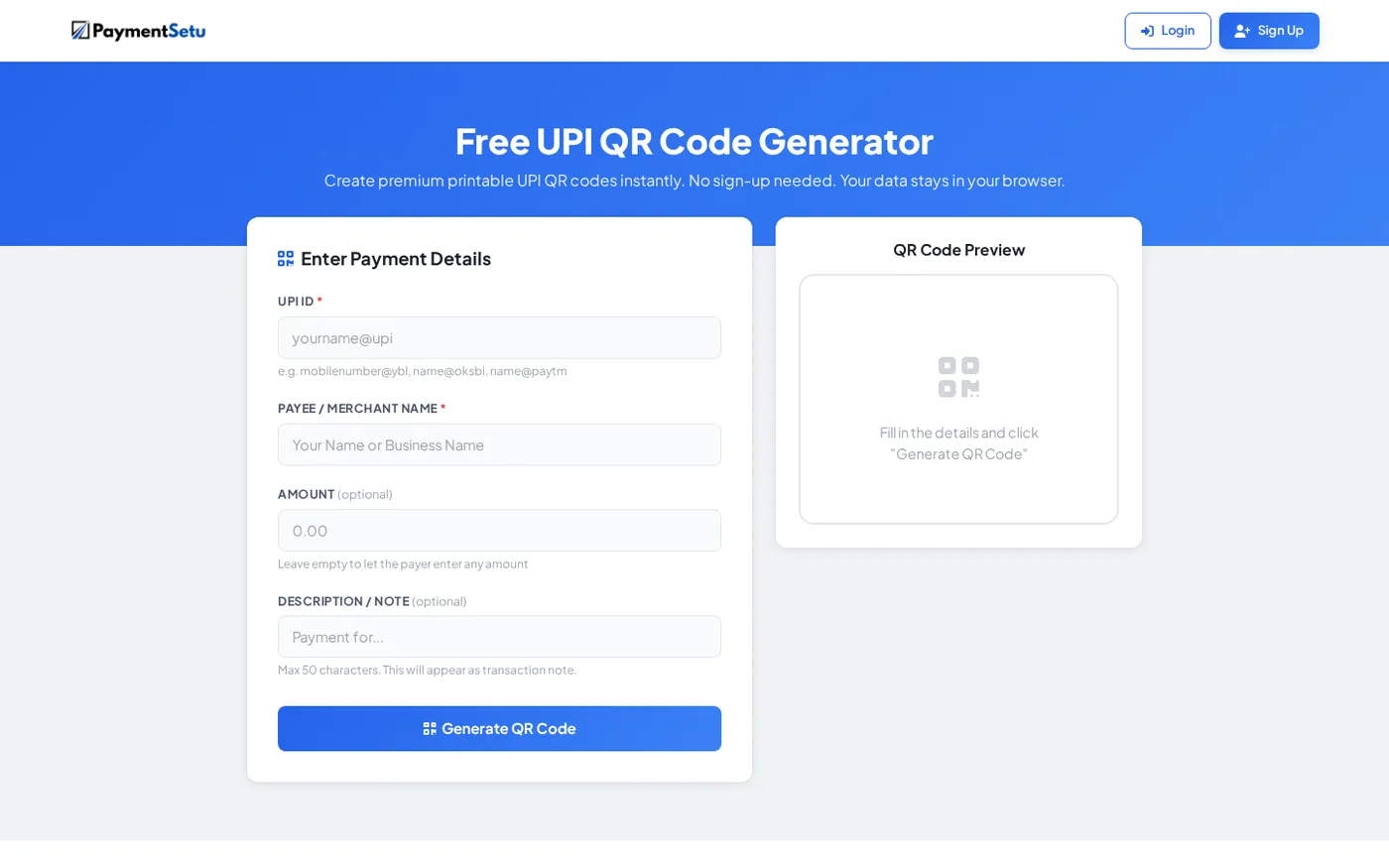
Open the PaymentSetu UPI QR generator. You should see fields for UPI ID, payee or merchant name, amount and description or note.
Why this matters: starting with the merchant’s own UPI ID ensures that the QR points to the account where the payment is meant to arrive.
Enter the UPI ID carefully, including the part after @. Do not copy a display name or mobile number unless it is actually the receiving UPI ID. A single character mistake can point the QR to a different address or make it unusable.
Success looks like this: the UPI ID is complete and matches the receiving account you intend to use.
Step 2: Add the payee name
Type the name of the person, shop or business that should appear to a payer. Use a name customers will recognise, rather than an internal nickname.
Why this matters: the name is a second check. A customer should be able to compare the name shown after scanning with the business they are paying.
Success looks like this: the name is spelled correctly and is easy to recognise on a small phone screen.
Step 3: Choose the amount and note
Enter an amount only when the QR is meant for a specific price. For a counter QR that will be used for different bills, leave the amount empty so the payer can enter the bill value in their UPI app.
Add a short note such as April consultation or Order 1042 when it will help identify the payment. The generator’s note field allows up to 50 characters, so keep the wording short and useful.
Why this matters: a fixed amount reduces re-keying for a standard price, while a blank amount keeps one QR useful for many different payments.
Success looks like this: the amount is correct for the intended use, and the note does not include confidential information.
Step 4: Generate and review the preview
Select Generate QR Code. Review the QR preview and the details you entered before downloading it.
Why this matters: the preview is your last easy opportunity to catch a wrong UPI ID, misspelt merchant name or unwanted amount before the code reaches a customer.
Success looks like this: a clear QR appears, and every payment detail matches the account and use case you selected.
Add a fixed amount and note (and when not to)
The amount field is useful for a known price: a ₹500 class fee, a fixed consultation charge or a standard service. A payer can scan the code and start with that amount already present, which avoids a typing step.
Leave the amount empty for a general-purpose counter standee, donation-style collection, variable bills or a freelancer who sends different invoices. In those situations, write the amount on the invoice or tell the customer the bill total separately, then ask them to confirm the final amount in the payment screen.
Use the note to provide a small piece of context, not as a replacement for reconciliation. A note such as Booking 482 can help a customer remember the purpose, but you should still retain your invoice, order number or receipt process.
Before publishing a QR with a fixed amount, scan it yourself and check that the amount shown is the intended one. If you later change the price, generate a new QR rather than assuming an old printed code will update.
Download, print and test your QR before you put it up
After the preview is correct, download the PNG and decide where it will be used. A counter standee, a printed invoice and a WhatsApp image have different viewing distances, but the same checks apply.
- Print or display the QR at a size that is easy for a phone camera to frame. NPCI’s 2026 BHIM-UPI guidelines specify a minimum QR size of 2 cm by 2 cm for the relevant QR sticker designs; a larger code is usually more practical on a busy counter or poster. Read the NPCI BHIM-UPI guidelines if you are preparing a branded merchant display.
- Keep a clean white margin around the QR. Do not crop its outer edge or place a dark pattern immediately against it.
- Scan from the same distance and angle a customer will use. Test in normal shop lighting, not only on your bright design screen.
- Check the payee name and amount in the UPI app before proceeding. Cancel the test payment unless you deliberately intend to make it.
- If you make a real test payment, confirm the credit in the receiving account and retain the transaction reference for your records.
Print a fresh copy if the QR is folded across the code, scratched, covered by tape or blurred after resizing. A payment QR must remain visually intact; a sharp original PNG gives scanners the best chance of reading it.
Static QR vs order-wise dynamic QR for online orders
The free generator creates a static payment QR: the encoded payee details stay the same until you create and display another QR. That is a good fit for a shop counter, a service desk, a stall, a business card or a reusable invoice template.
Online stores and service platforms often need something more specific. If every order has a different amount and order ID, you need to connect the payment to the correct order rather than asking a person to inspect a bank statement manually.
| Need | Static QR from the free generator | Order-wise dynamic QR with verification |
|---|---|---|
| Best fit | Counter, stall, card or repeated simple payments | WooCommerce, WHMCS, SaaS or custom order flow |
| Amount | Optional fixed amount or payer-entered amount | Created for the individual order |
| Order matching | You reconcile the payment using your own process | Payment details can be matched to the order |
| Automation | No webhook from the QR alone | Webhook can notify your application after verification |
| Setup | Fill in the form and download | Connect the payment verification service and your platform |
PaymentSetu is a payment verification service, not a payment gateway. With a connected Paytm Business or PhonePe Business merchant account, the customer pays directly to the merchant’s own account; PaymentSetu matches the UTR and amount to the dynamic QR or order and sends a webhook. It does not hold the payment.
For a WooCommerce store, see the PaymentSetu WooCommerce plugin. Hosting companies can use the WHMCS gateway module. If you are building a custom checkout, the service also provides API access and HMAC-signed webhooks through its plans.
Use a static QR safely at a counter or on an invoice
A QR makes payment easier, but it does not remove the need for a payment check. Use a simple routine:
- Keep the printed code in a place where customers can see the merchant name beside it.
- Ask the payer to verify the recipient and amount before entering a UPI PIN.
- Treat a screenshot, SMS or spoken claim as a payment attempt, not as final proof of credit.
- Confirm the payment in the receiving account or your verification system before handing over a product or marking an order paid.
- Replace the displayed QR if you change the receiving UPI ID.
Do not ask a customer to scan a QR and enter a UPI PIN to receive money. NPCI’s fraud-awareness guidance explains that scanning a QR and entering a UPI PIN is for making a payment, not receiving one.
Troubleshooting a UPI QR code
The QR will not scan
Open the original PNG and try again with the phone camera or UPI app’s scan function. Check that the code is not cropped, compressed, covered, too small or surrounded by a busy background. If it still fails, create a fresh QR from the verified UPI ID and test the new file before printing.
The merchant name or UPI ID looks wrong
Stop the test and do not publish the QR. Return to the generator, compare the UPI ID character by character with the receiving account, correct the merchant name, and generate a new code.
The amount is not what you expected
Check whether you entered a fixed amount or left the field empty. Scan again and review the payment screen; the payer should always confirm the final amount before authorising a payment.
The QR works on screen but not on paper
Try a larger print, stronger contrast and more white space around the code. Avoid stretching a small image to poster size. Test the actual printed copy from the distance and lighting of the counter.
I need to know which order was paid
A static QR alone does not create order-wise matching. Use an invoice reference and your own reconciliation process for a small number of payments, or move to a dynamic QR and webhook flow when your online orders need automated matching.
FAQ
Does a UPI QR work with every UPI app?
The PaymentSetu free generator is designed to create a standard UPI payment QR for scanning in UPI apps. The payer’s app must support QR-based UPI payments, and the payer should check the displayed recipient and amount before authorising the transaction. NPCI’s merchant guidance uses the instruction “Scan & Pay with any UPI app” for applicable QR displays.
Is it safe to create a UPI QR online?
Use a generator that clearly explains what happens to the data, and never enter your UPI PIN, bank password or card details into a QR generator. PaymentSetu’s free tool states that it needs no sign-up and that the entered details stay in the browser. Always scan the result and verify the payee before sharing or printing it.
Does a static UPI QR expire?
A static QR does not normally contain a countdown or order session. It can remain useful while the encoded UPI ID is active, but you should create a new one if the receiving UPI ID or business details change. Test a displayed code periodically, especially after changing accounts or printed material.
Can I add an amount to a UPI QR?
Yes. Enter a fixed amount in the generator when the QR is for a known price. Leave the amount blank when customers will pay different totals, and ask the payer to review the final amount in the UPI app before completing payment.
Can a free static QR automatically mark my online order as paid?
No. A static QR carries payment details, but the QR by itself does not match a UPI credit to an order or send a webhook. For automated order updates, use an order-wise dynamic QR with a payment verification flow such as PaymentSetu.